MongoDB is one of the most popular NoSQL databases today. It’s widely used in Node.js applications and large-scale, multi-tenant architectures. In such systems, Role-Based Access Control (RBAC) ensures that users only access the resources they are authorized to.
MongoDB’s built-in Role-Based Access Control (RBAC) helps at the database level by restricting operations based on database users. This is useful for structuring access across different services, such as an admin API that can modify data and a client API limited to read-only access.
However, it does not handle application-level authorization—who can access which documents or fields within the database.
In this guide, we’ll explore how to enforce RBAC at the application level using MongoDB, Mongoose, and Permit.io. We’ll define roles and permissions, integrate them with queries, and apply PDP-Level Filtering to ensure users only retrieve or modify allowed data. To demonstrate this, we’ll use a customer support platform as a practical example.
Let’s start with a bit of a background -
Understanding Multi-Tenant RBAC in MongoDB
What is Multi-Tenancy?
Multi-tenancy is a system architecture in which multiple tenants (organizations or customers) share the same database while maintaining isolated data and user roles. Each tenant has its own users, and a user can belong to multiple tenants with different roles in each.
For example, a customer support agent might be an admin in one company but only have read access in another.
Why MongoDB’s Built-in RBAC Isn’t Enough
MongoDB offers Role-Based Access Control (RBAC) that works at the database level, controlling actions like reading or writing collections.
Application-level authorization takes this one step further, enforcing who can access specific documents or what actions they can perform within the app. Hardcoding these rules in MongoDB queries can get complex and difficult to maintain, especially in a multi-tenant environment.
Using an External Authorization Solution
Instead of embedding access rules in database queries, an external authorization service like Permit.io centralizes role and permission management. This approach ensures three important things:
- Tenant-specific roles are managed dynamically.
- Authorization logic remains separate from the database.
- Access rules scale efficiently across multiple tenants.
In this guide, we’ll implement multi-tenant RBAC in a MongoDB + Mongoose application using Permit.io to enforce access policies.
What Will We Build?
To demonstrate Multi-tenant RBAC, we’ll use a simple customer support application as a use case where:
- Each company (tenant) has its own users and tickets
- Users have specific roles (Admin, Agent, Customer) within each tenant
- Access to tickets is controlled based on role and tenant membership
- Data is filtered dynamically based on permissions before being returned to users
Our RBAC policies will ensure that:
- Tenant Admins can manage all users and tickets within their tenant
- Support Agents can view and respond to tickets in their tenant but can't modify users
- Customers can only create and view their own tickets
Prerequisites and Tech Stack
To follow along with this tutorial, you'll need:
We'll be using:
- MongoDB with Mongoose: For data storage and object modeling
- Node.js and Express.js: For our API backend
- TypeScript: For type safety
- Permit.io: For authorization management
Implementing Multi-Tenant RBAC with Mongoose and Permit.io
Before diving into code, let's break down our approach to implementing multi-tenant RBAC:
The foundation of our multi-tenant RBAC system starts with a well-structured MongoDB data model. We'll use Mongoose to define schemas that represent our core entities and their relationships.
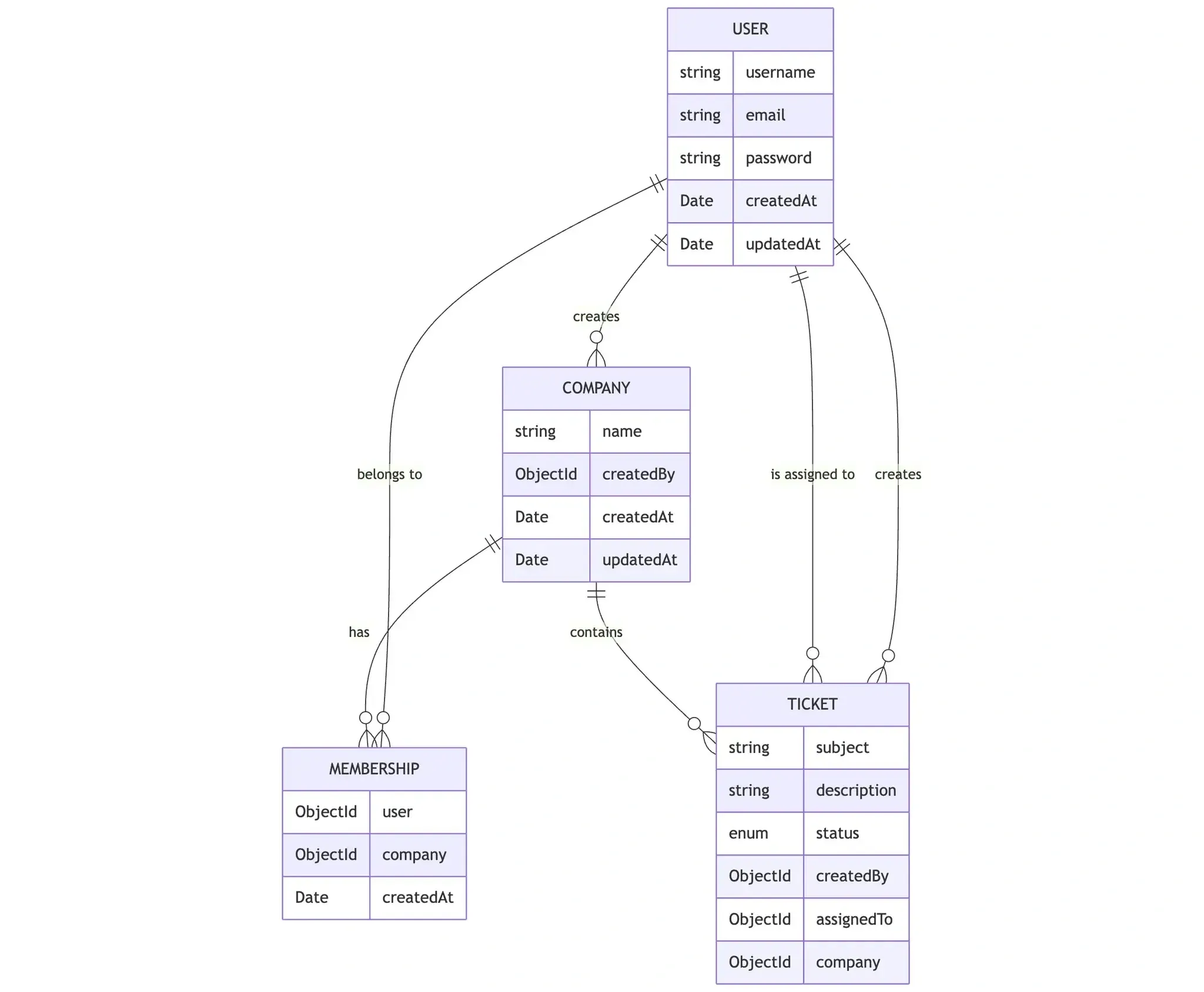
Our application revolves around four key models:
- User Model - Represents individual users in the system. Stores user details (username, email, password) with built-in validation and timestamp tracking. This will be synced as Users in Permit.io.
- Company Model - Represents organizations (tenants), linking each company to its creator (createdBy field). It will correspond to Tenants in Permit.io.
- Membership Model - Manages the many-to-many relationships between users and companies. Our application will use this to identify which user belongs to which company/tenant, which will be useful for displaying company members or companies a user belongs to.
- Ticket Model - Represents support tickets within the context of companies and users. Each ticket is linked to its creator (createdBy) and may be assigned to a user (assignedTo) for resolution.
Let's examine each model and see how they work together:
User Model
The User model stores essential information about each person accessing the system:
// ./src/models/User.ts
import { Document, model, Schema } from "mongoose";

export interface IUser extends Document {
  username: string;
  email: string;
  password: string;
  createdAt: Date;
  updatedAt: Date;
}

const UserSchema = new Schema<IUser>(
  {
    username: {
      type: String,
      required: true,
      unique: true,
      trim: true,
      minlength: 3,
    },
    email: {
      type: String,
      required: true,
      unique: true,
      trim: true,
      lowercase: true,
    },
    password: {
      type: String,
      required: true,
      minlength: 6,
    },
  },
  {
    timestamps: true,
  },
);

const User = model<IUser>("User", UserSchema);
export default User;
View on GitHub
This model establishes the foundation for authentication. Users can belong to multiple companies (tenants) with different roles in each, which is crucial for multi-tenant RBAC.
Company Model
The Company model represents our tenants:
// ./src/models/Company.ts
import { Document, model, Schema } from "mongoose";

export interface ICompany extends Document {
  name: string;
  createdBy: Schema.Types.ObjectId;
  createdAt: Date;
  updatedAt: Date;
}

export const CompanySchema = new Schema<ICompany>(
  {
    name: { type: String, required: true },
    createdBy: { type: Schema.Types.ObjectId, ref: "User", required: true },
  },
  {
    timestamps: true,
  }
);

const Company = model<ICompany>("Company", CompanySchema);
export default Company;
View on GitHub
Each company will map to a tenant in our RBAC system. The createdBy field establishes a relationship with users and provides a record of company ownership in MongoDB.
Membership Model
The Membership model creates a many-to-many relationship between users and companies. This means that a company can have many users(members), and a user can belong to many companies(memberships):
// ./src/models/Membership.ts
import { Document, model, Schema } from "mongoose";

export interface IMembership extends Document {
  user: Schema.Types.ObjectId;
  company: Schema.Types.ObjectId;
  createdAt: Date;
  createdBy: Schema.Types.ObjectId;
}

export const MembershipSchema = new Schema<IMembership>(
  {
    user: { type: Schema.Types.ObjectId, ref: "User", required: true },
    company: { type: Schema.Types.ObjectId, ref: "Company", required: true },
  },
  {
    timestamps: true,
  }
);

const Membership = model<IMembership>("Membership", MembershipSchema);
export default Membership;
View on GitHub
This model is critical for multi-tenant RBAC because it allows us to:
- Track which users belong to which companies
- Determine a user's context when performing operations
- Filter data based on company membership for proper tenant isolation
This model will be instrumental in determining which tenant-specific roles should be applied to a user when implementing RBAC.
Ticket Model
Finally, the Ticket model represents support tickets within our multi-tenant system.
The Ticket model will:
- Store key details such as subject, description, and status.
- Link tickets to the user who created them and (optionally) an assigned agent.
- Associate tickets with a specific company (tenant) for multi-tenant support.
- Maintain timestamps to track when tickets are created or updated.
// ./src/models/Ticket.ts

import { Document, model, Schema } from "mongoose";

export interface ITicket extends Document {
  subject: string;
  description: string;
  status: "open" | "in-progress" | "resolved";
  createdBy: Schema.Types.ObjectId;
  assignedTo?: Schema.Types.ObjectId;
  company?: Schema.Types.ObjectId;
  createdAt: Date;
  updatedAt?: Date;
}

const TicketSchema = new Schema<ITicket>(
  {
    subject: { type: String, required: true },
		description: { type: String, required: true },
		status: {
      type: String,
      enum: ["open", "in-progress", "resolved"],
      default: "open",
    },
    createdBy: { type: Schema.Types.ObjectId, ref: "User", required: true },
    assignedTo: { type: Schema.Types.ObjectId, ref: "User" },
    company: { type: Schema.Types.ObjectId, ref: "Company" },
  },
  {
    timestamps: true,
  },
);

const Ticket = model<ITicket>("Ticket", TicketSchema);

export default Ticket;
View on GitHub
Let’s break down what’s happening in our Ticket.ts file. We’ve defined a Mongoose schema that represents a support ticket, ensuring it has all the essential fields needed for a structured ticketing system. The ITicket interface sets up the data structure, requiring a subject, description, and status, while also linking tickets to users via createdBy and assignedTo fields.
Mongoose’s Schema features help enforce data integrity:
- Enum validation on status ensures tickets only have predefined states (open, in-progress, resolved).
- ObjectId references connect tickets to users, allowing us to manage relationships in a multi-tenant setup.
- Company reference is required, ensuring each ticket belongs to a specific organization.
timestamps: true automatically manages createdAt and updatedAt, saving us from manual time-tracking logic.
With this model in place, we now have a solid foundation for managing support tickets. In the next section, we’ll sync this data with Permit.io, mapping our ticket attributes to a role-based access control system that ensures users can only view or modify tickets based on their permissions.
Here’s a diagram illustrating the connections between our models:
How These Models Work Together for Multi-Tenant RBAC
The relationships between these models create the foundation for implementing RBAC in our MongoDB database:
- Tenant Isolation: Each ticket is linked to a specific company (tenant), allowing us to enforce data boundaries between organizations.
- User-Company Relationships: The Membership model establishes which users belong to which companies, enabling us to filter data based on company affiliation.
- Ownership and Assignment: Tickets track both creators and assigned agents, which will be used to implement instance-based permissions (e.g., customers can view only tickets they created)
This data model architecture provides the necessary structure for implementing role-based permissions that respect tenant boundaries. When a user makes a request, we can identify:
- Which company (tenant) they're acting within
- What role do they have in that company
- What resources they're attempting to access
- Whether they have the appropriate permissions
With this MongoDB data structure in place, we're now ready to define our authorization model and integrate Permit.io to enforce these RBAC policies.
Planning the Authorization Model
Before implementing multi-tenant RBAC in our MongoDB and Mongoose application, we need to define a clear authorization model. This model determines who can access what and what actions they can perform.
Roles
We will define three primary top-level roles within a tenant:
- Admin – Manages users and support tickets within their organization.
- Agent – Creates, views, and responds to tickets in their assigned tenant.
- Customer – Creates their own support tickets.
Then, we’ll define one resource instance role:
Ticket#viewer—This is Assigned to customers who create tickets. It allows them to view the ticket that they created and has been assigned to them.
Resources
These are the entities we are protecting:
- Company – Each organization is a tenant with its own users and tickets. They will be created as tenants in Permit.
- Tickets – Support requests created by users and handled by agents. They will be created as resource instances in Permit.
Policies
Each role has specific permissions for different resources:
- Admins can manage (create, update, delete) tickets and users in their tenant.
- Agents can view and respond to tickets in their assigned tenant.
- Customers can create tickets and view only their own.
Here’s a diagram illustrating our roles and permissions:
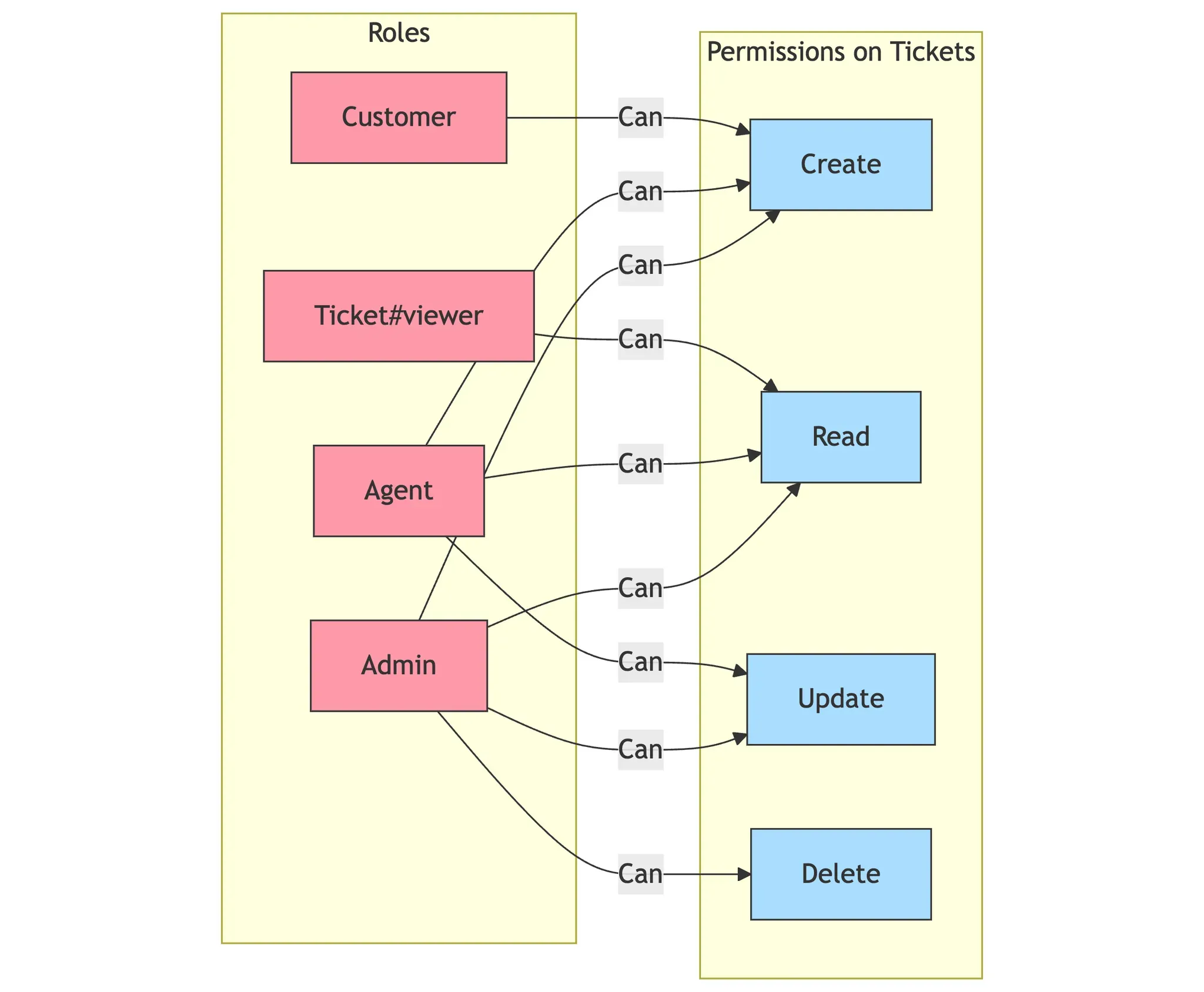
This diagram illustrates our role-based access control model for ticket management within a tenant. Each role—Admin, Agent, Customer, and Ticket#viewer—has specific permissions on the Ticket resource.
To get an idea of how access control works across different companies in our system, take a look at this diagram that illustrates how users interact with tickets based on their roles and company membership:
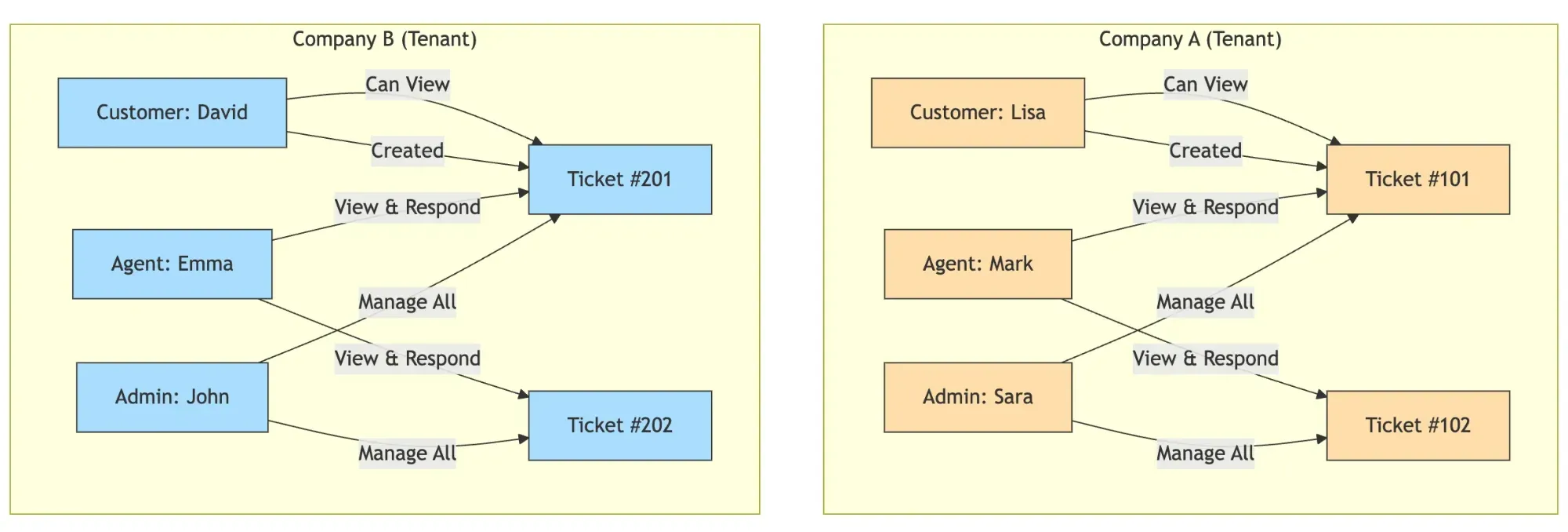
As shown in this diagram, users in Company A (Sara, Mark, and Lisa) can only access tickets within their tenant (#101 and #102), while users in Company B (John, Emma, and David) can only access their company's tickets (#201 and #202). Within each tenant, permissions are enforced based on user roles—Admins can manage all tickets, Agents can view and respond to any ticket in their tenant, and Customers can only view tickets they created.
With this model in place, we can now define our database schema and implement access control using Mongoose and Permit.io.
Defining the Authorization Schema in Permit.io
Let's set up our permission model in Permit.io. To get started:
- Create an account, or log in on app.permit.io.
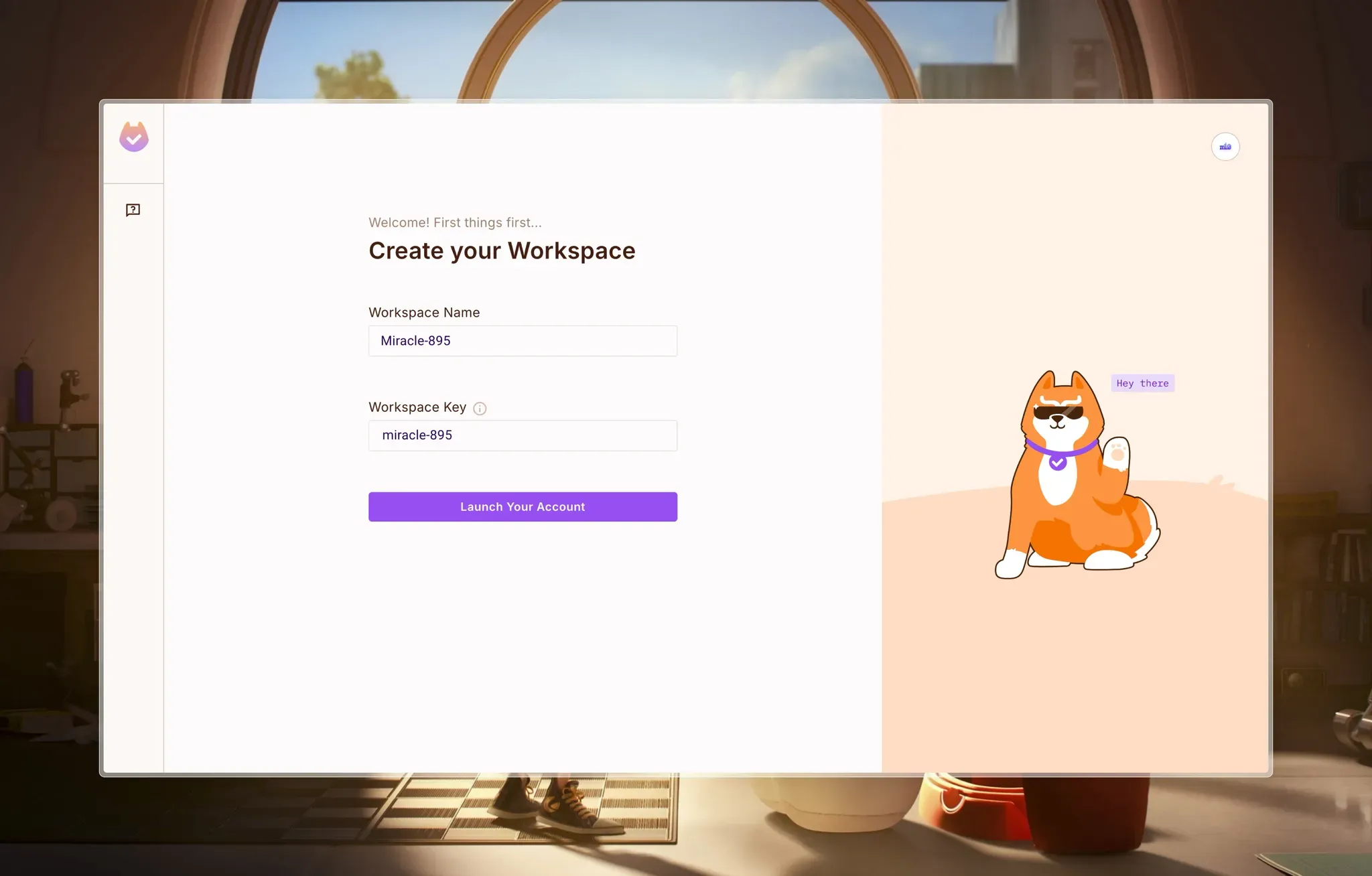
- Start by creating a workspace for your project:
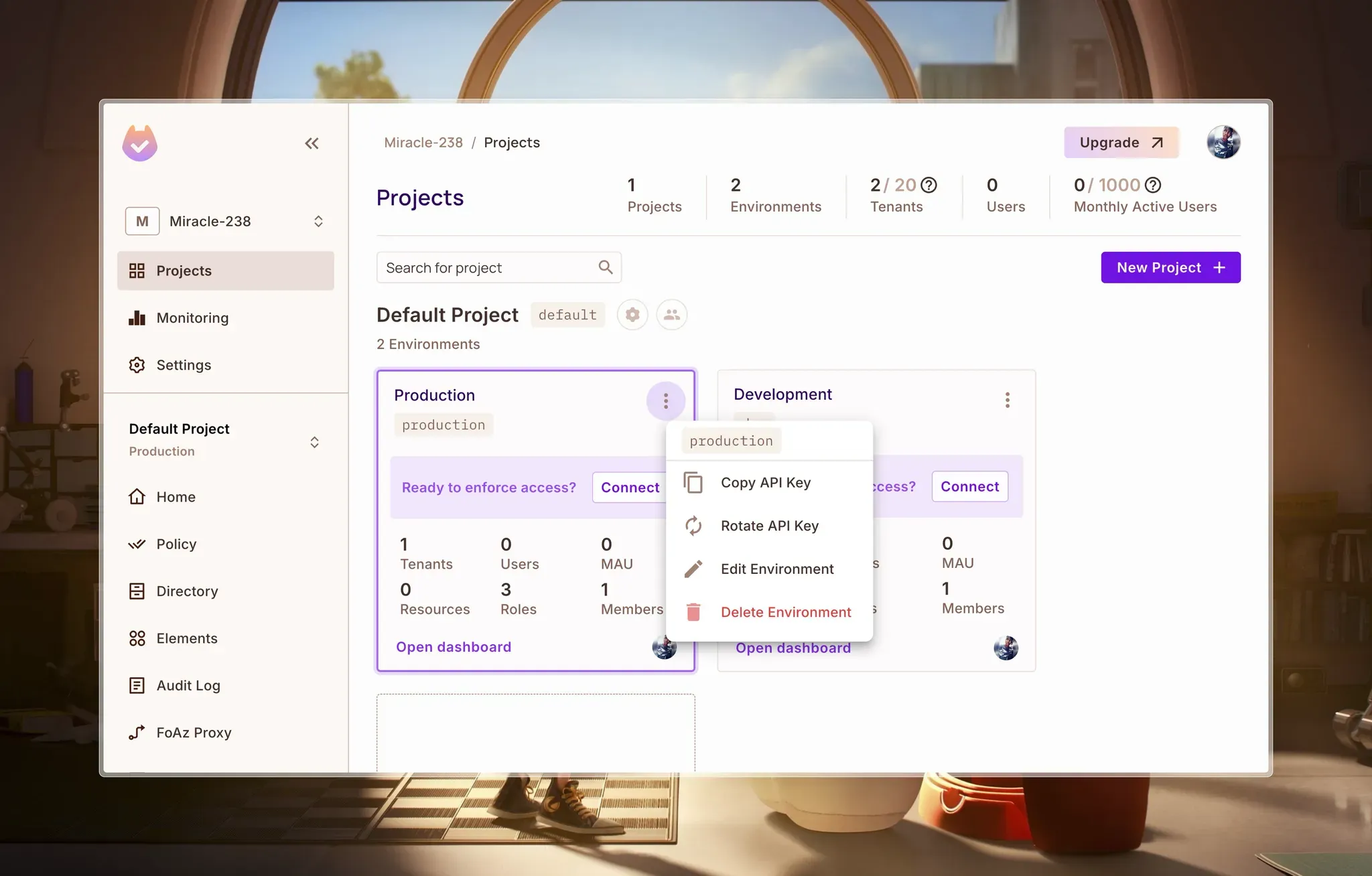
- Navigate to the Projects page and select your preferred environment (Development/Production)
- Copy your API Key:
Create Ticket Resource
We’ll start by creating our resources. To create a new resource, navigate to the Resources page from Policy > Resources.
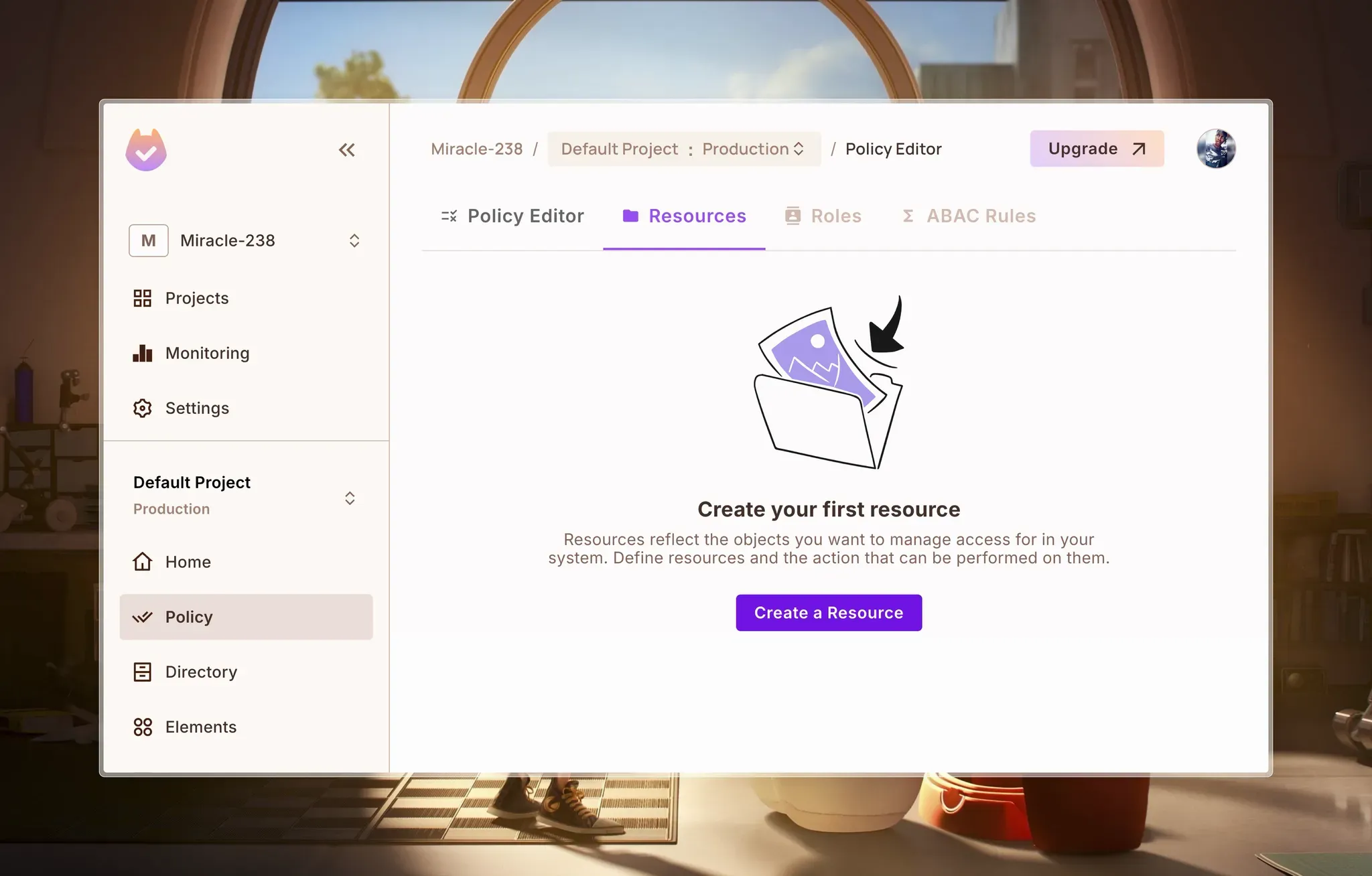
Create the Task resource and define the basic read, create, update, and delete actions. These represent the possible actions that can be performed on this resource:
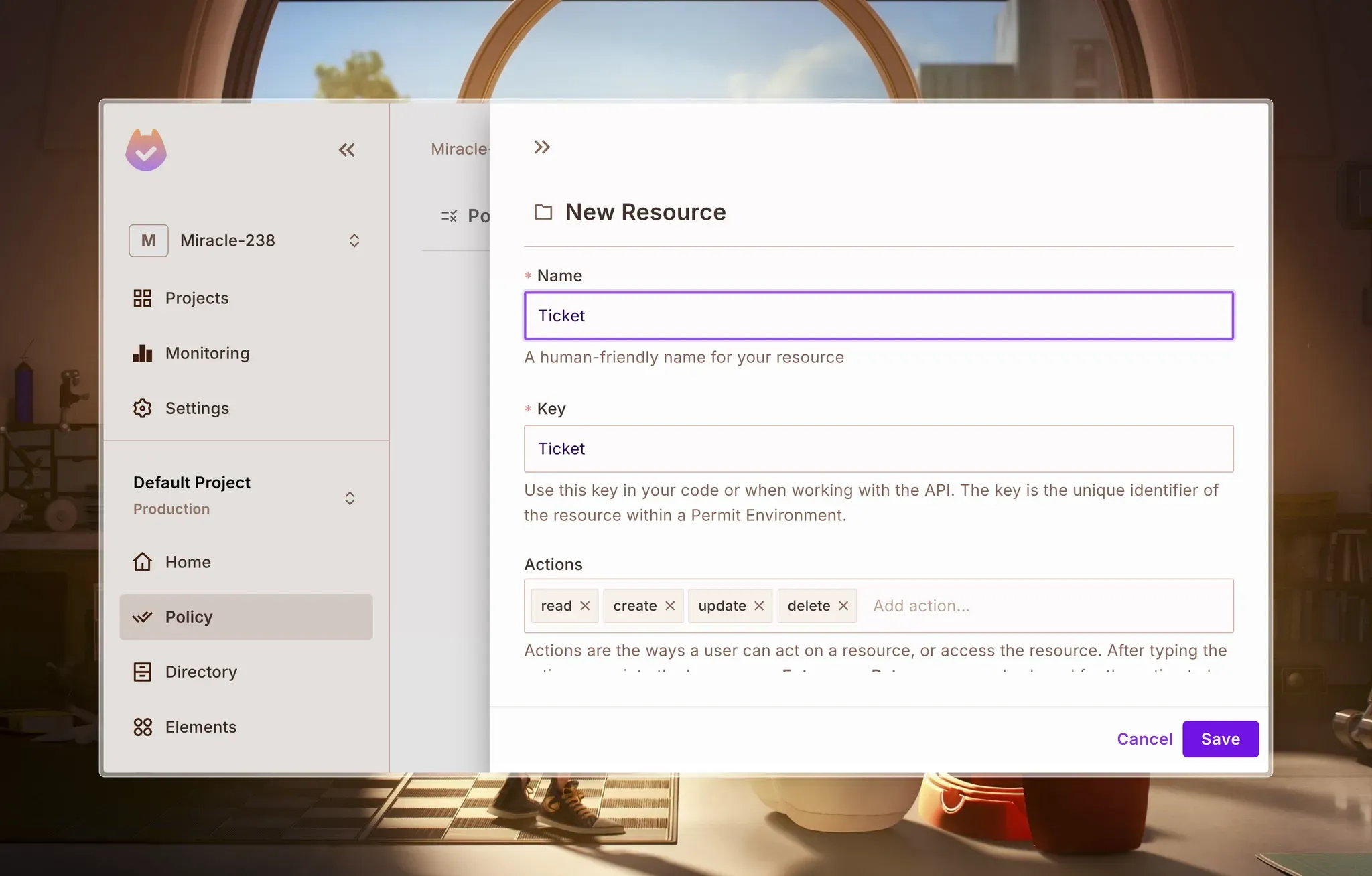
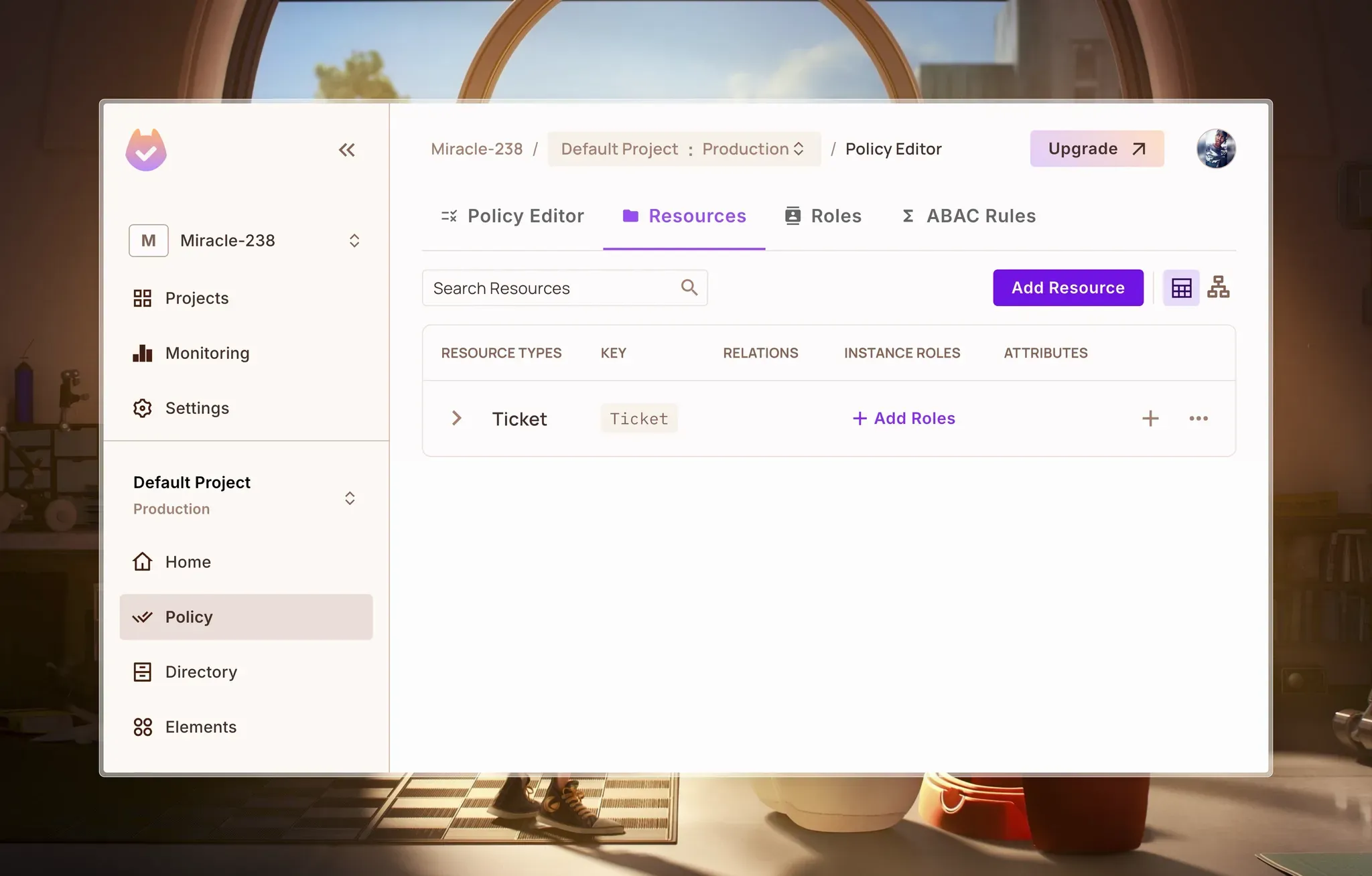
Click on Save to create the resource. With that, we should have something like this:
Create Roles
We will need to create the following roles:
Permit.io already comes with admin, editor, and viewer roles. Since the default admin role suits our needs, we’ll only have to create the agent and customer roles.
To create a role, navigate to Policy > Roles and click on Add Role.
First, create an agent role:
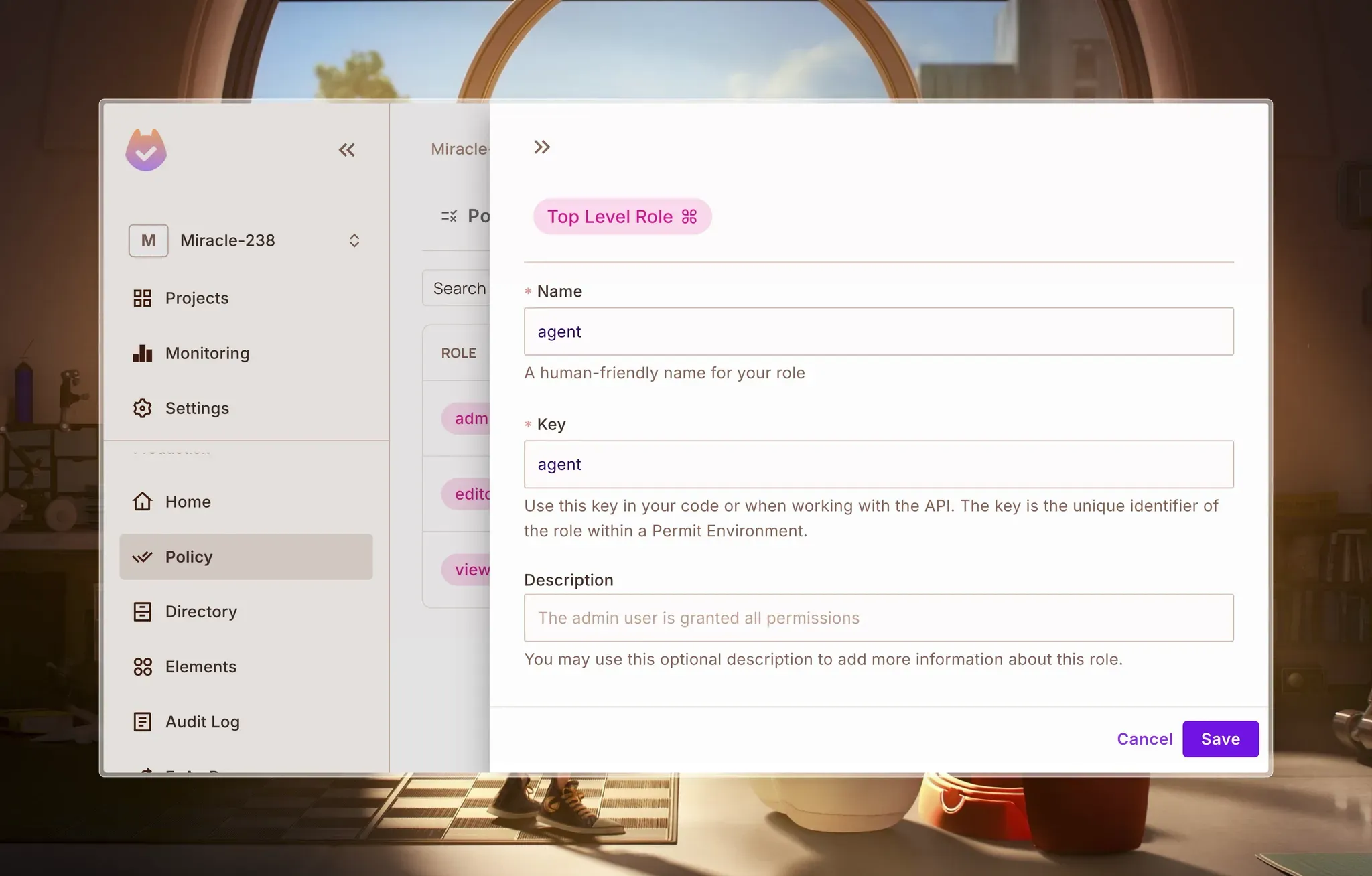
Click on Save to create the role.
Next, create a customer role:
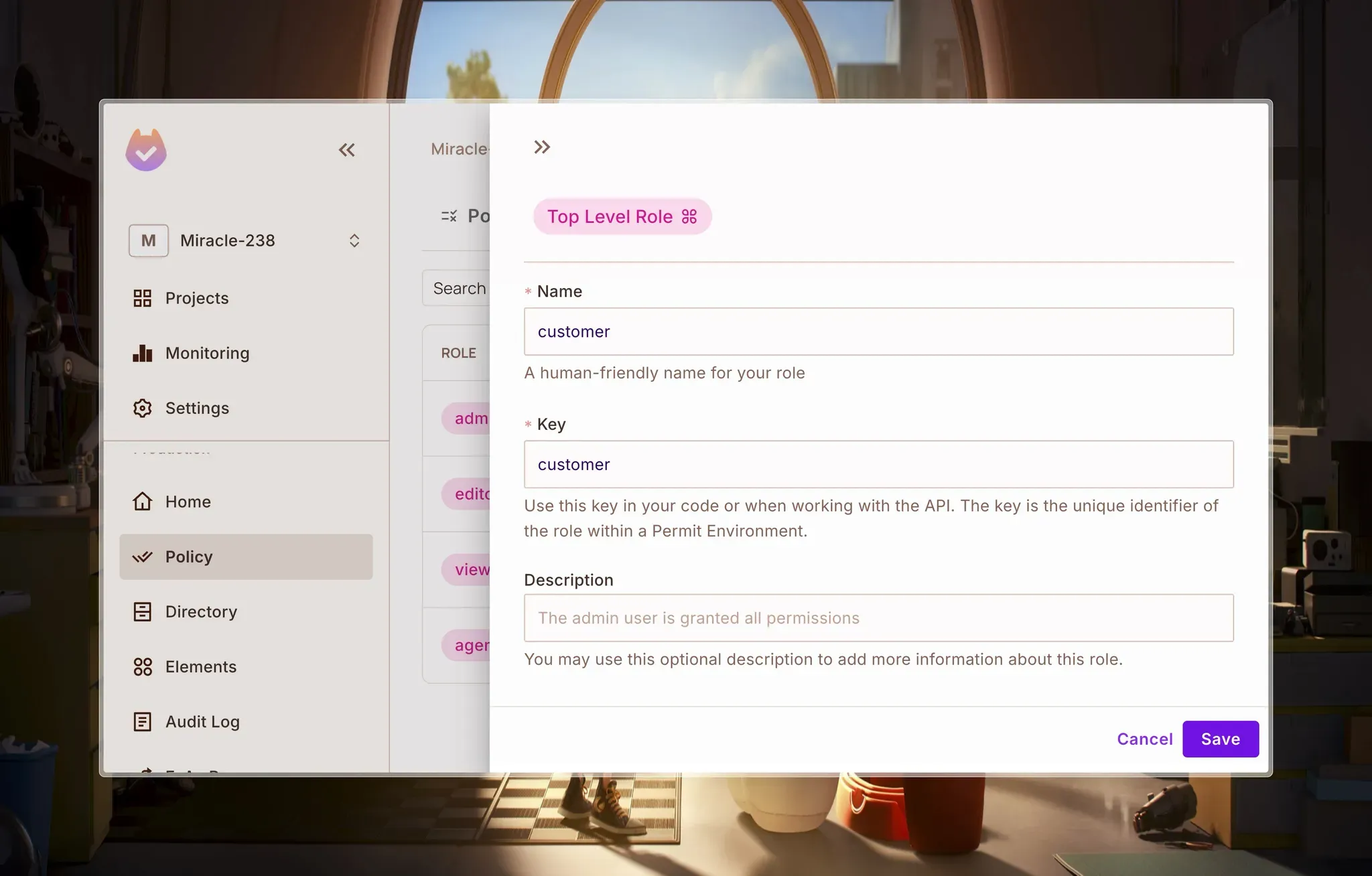
Click on Save to create the role.
With that, we should have something like this:
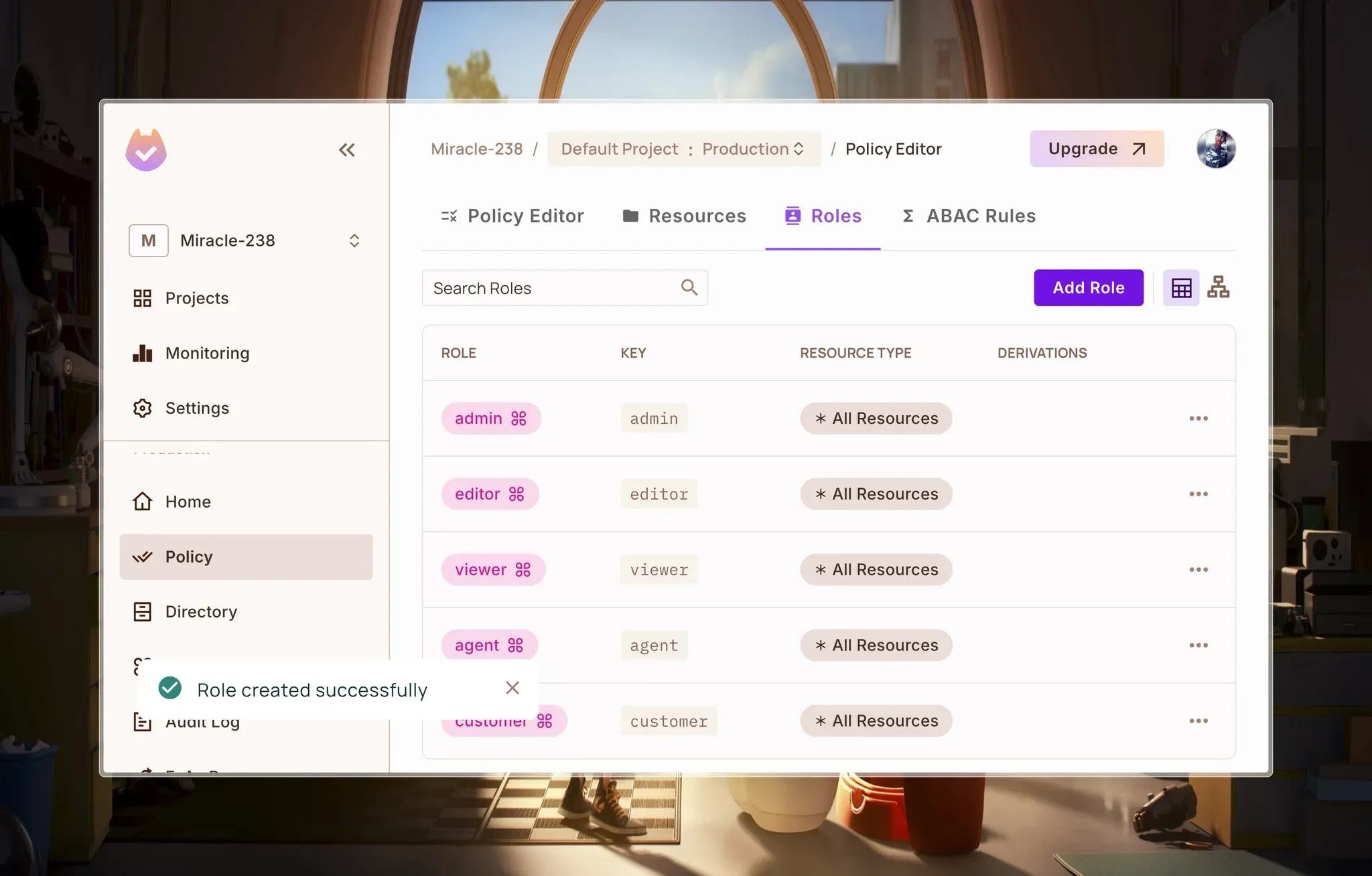
Now that we’ve successfully created our resources and roles, we can proceed to define our policies.
Configure Role Permissions
Now, go to the Policy Editor tab and check the boxes to define the actions on resources for our newly created roles.
For the agent role:
- Ticket resource:
create, read, update
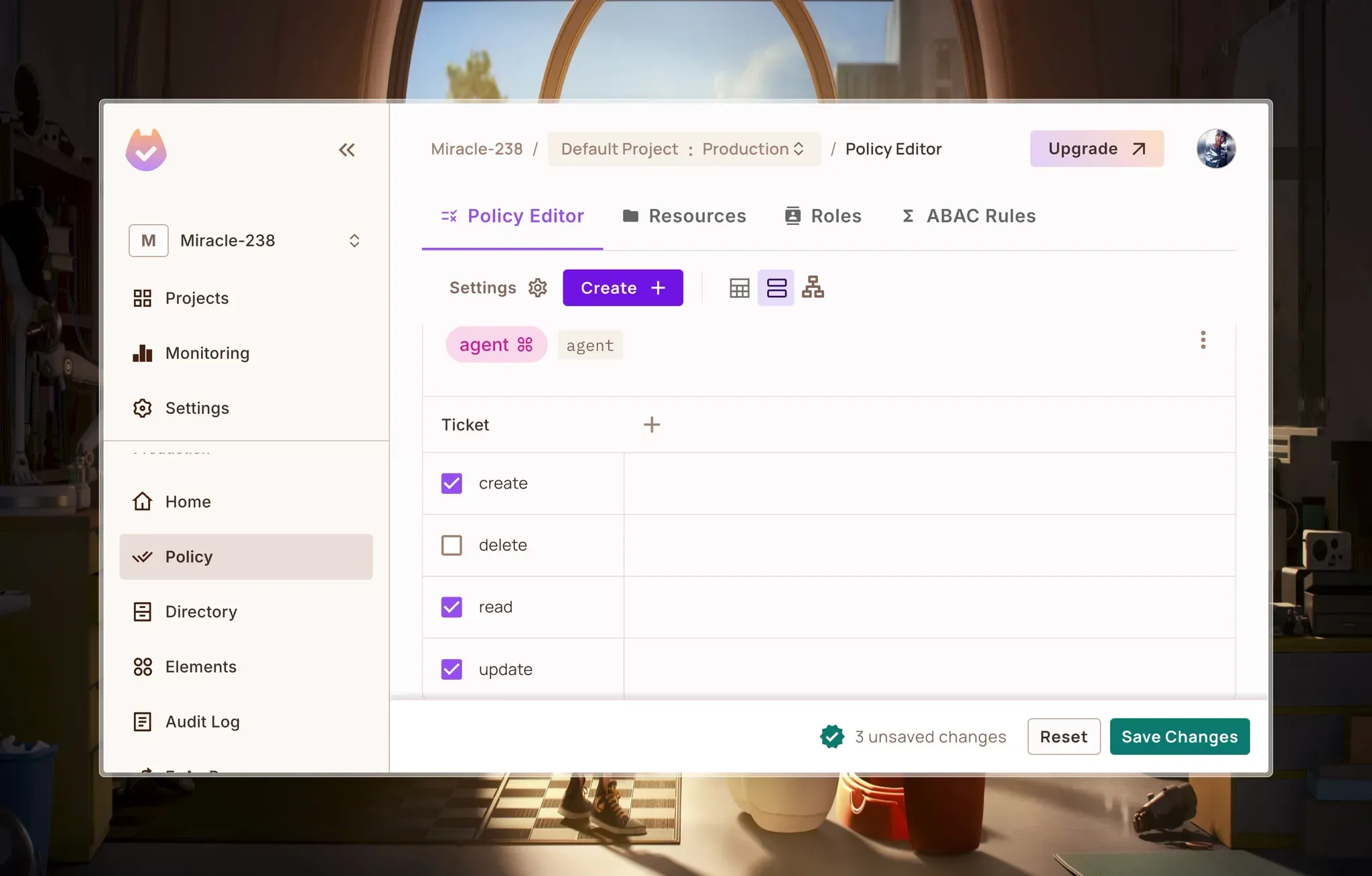
For the customer role:
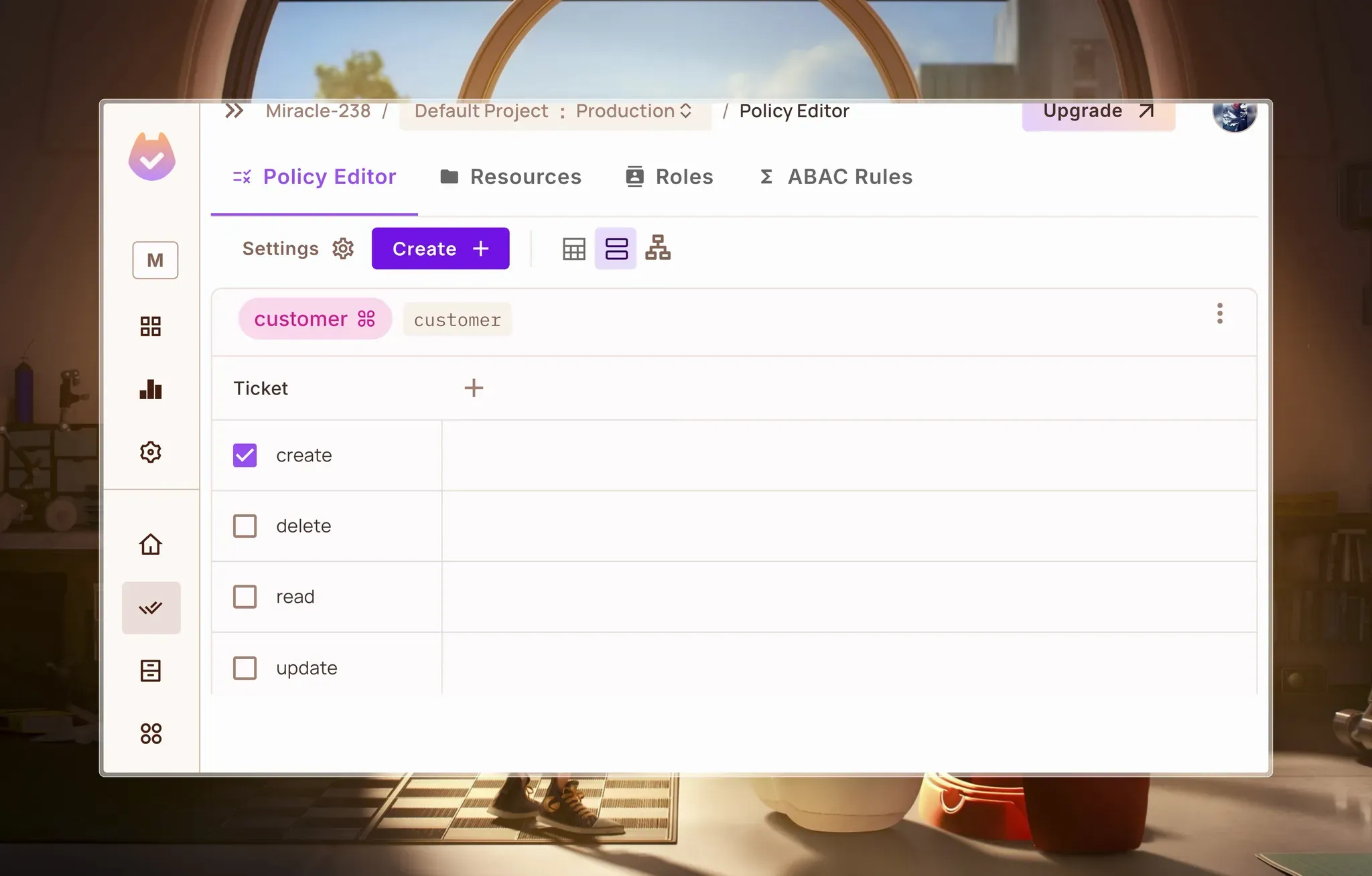
Click on Save Changes to configure the policies.
Setting Up Instance Roles
Lastly, to complete our access control setup, we’ll create the viewer instance role on the Ticket resource to include some relationship-based access control (ReBAC).
This will allow us to give the customer read access to tickets that they create by assigning them the viewer role on that ticket resource instance.
To create an instance role on the Ticket resource, navigate to the Resources page in the policy editor and click on + Add Roles:
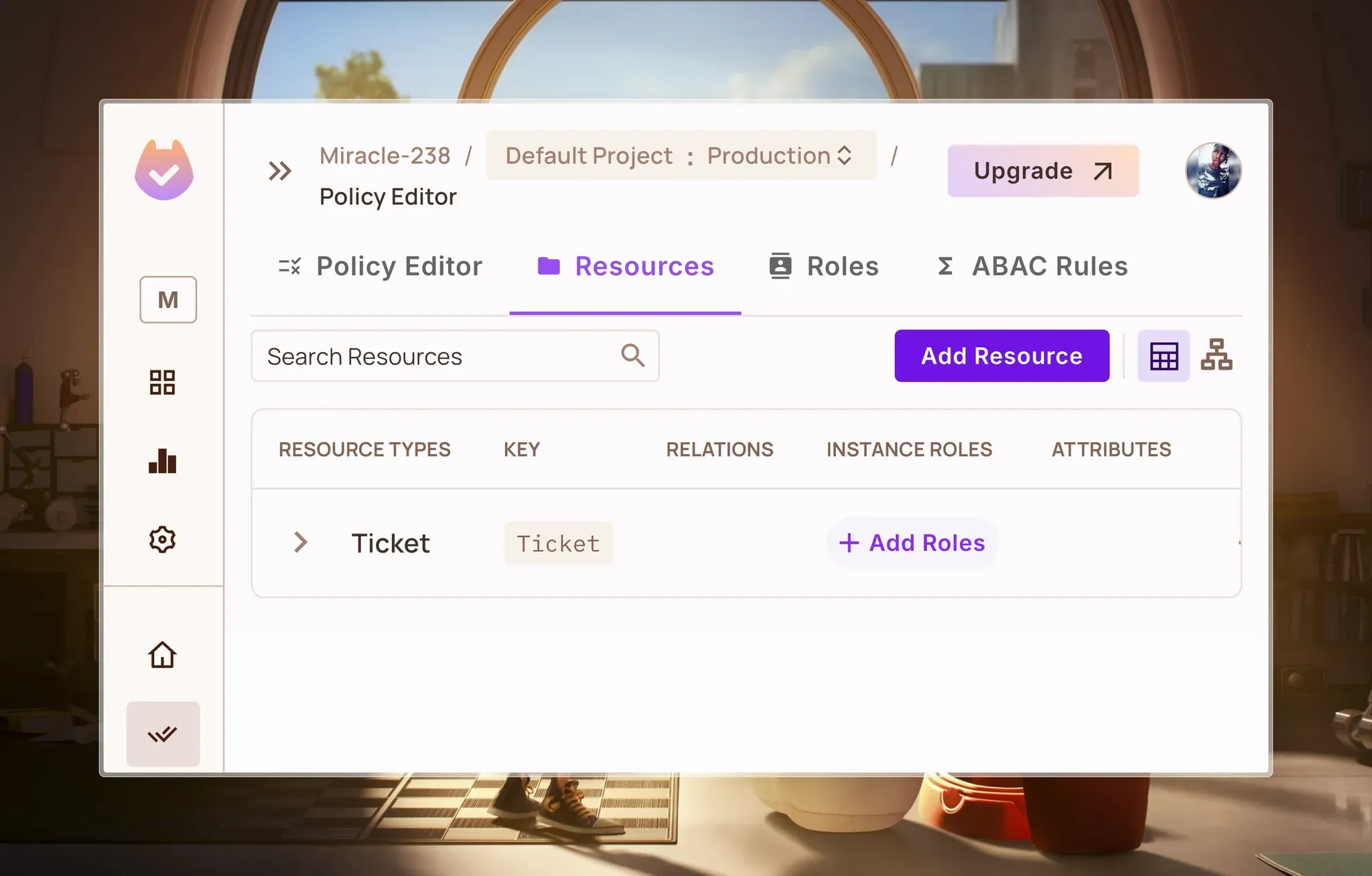
Now, scroll down to the ReBAC Options section and enter viewer in the roles field:
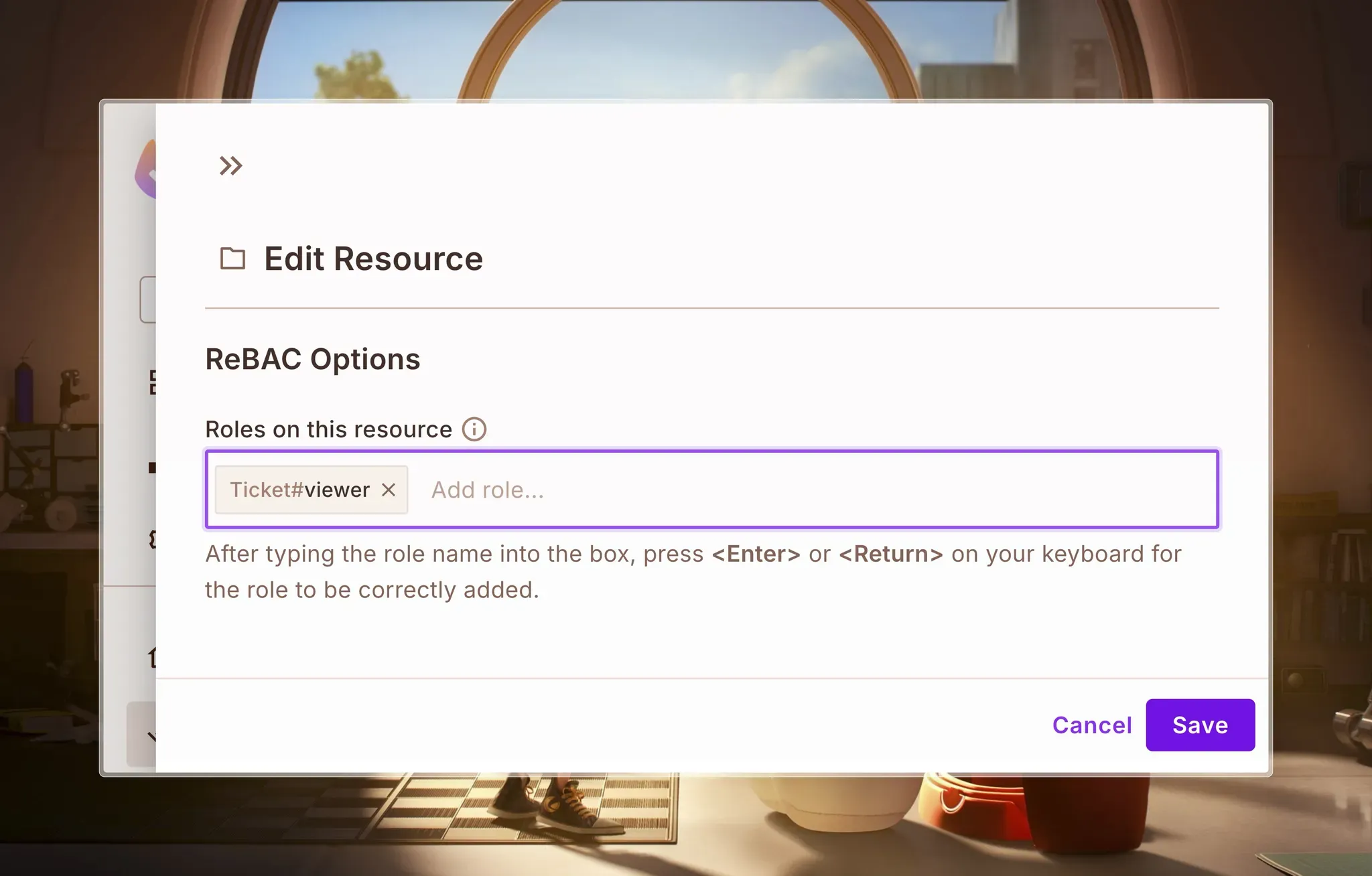
It will create a Ticket#viewer role. Click on Save to save changes.
With that, we should an instance role created for the Ticket resource:
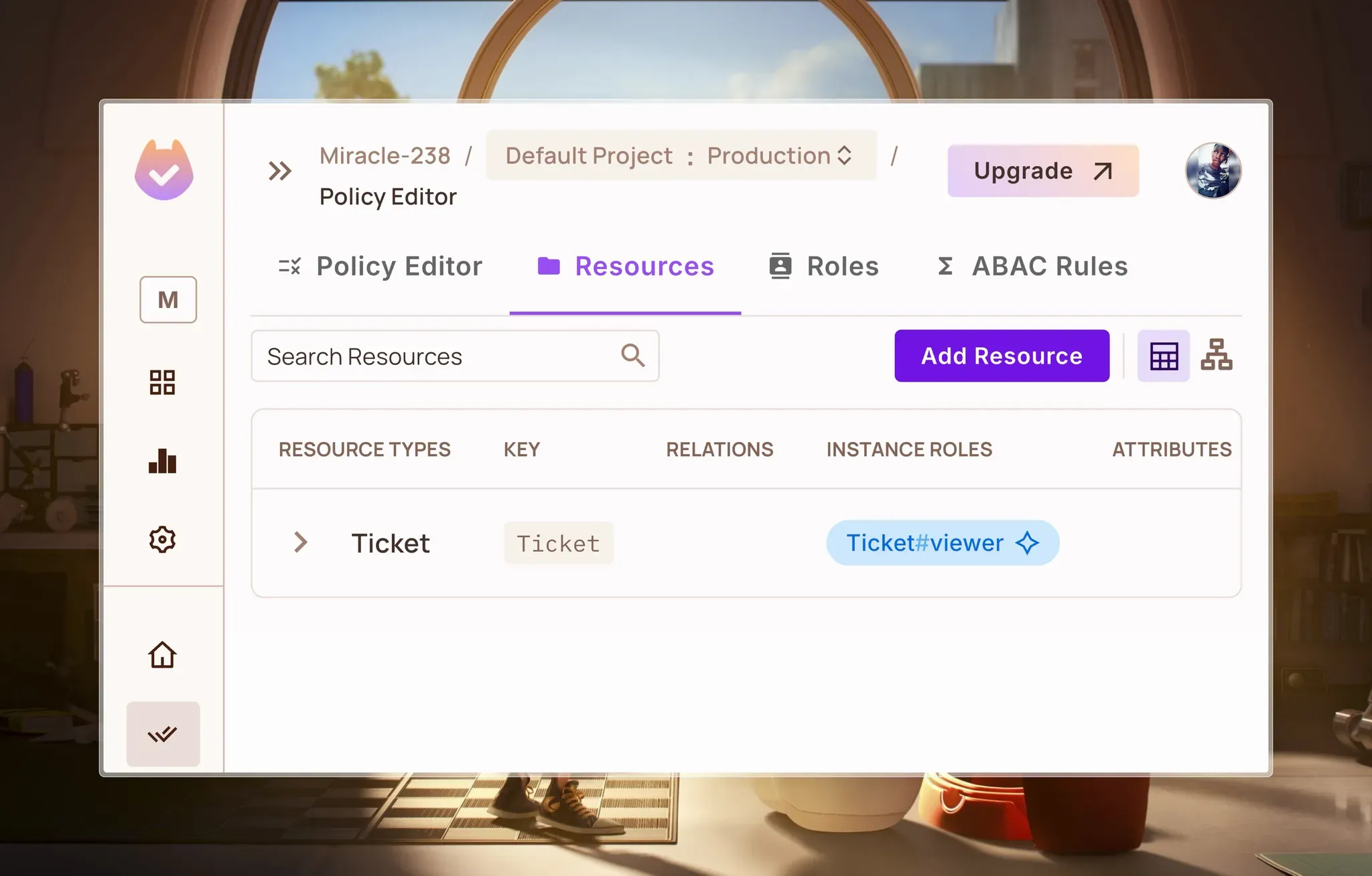
What’s left is to configure the permission for this role. To do that, navigate back to the Policy Editor, scroll to the Ticket#viewer column and select the read checkbox:
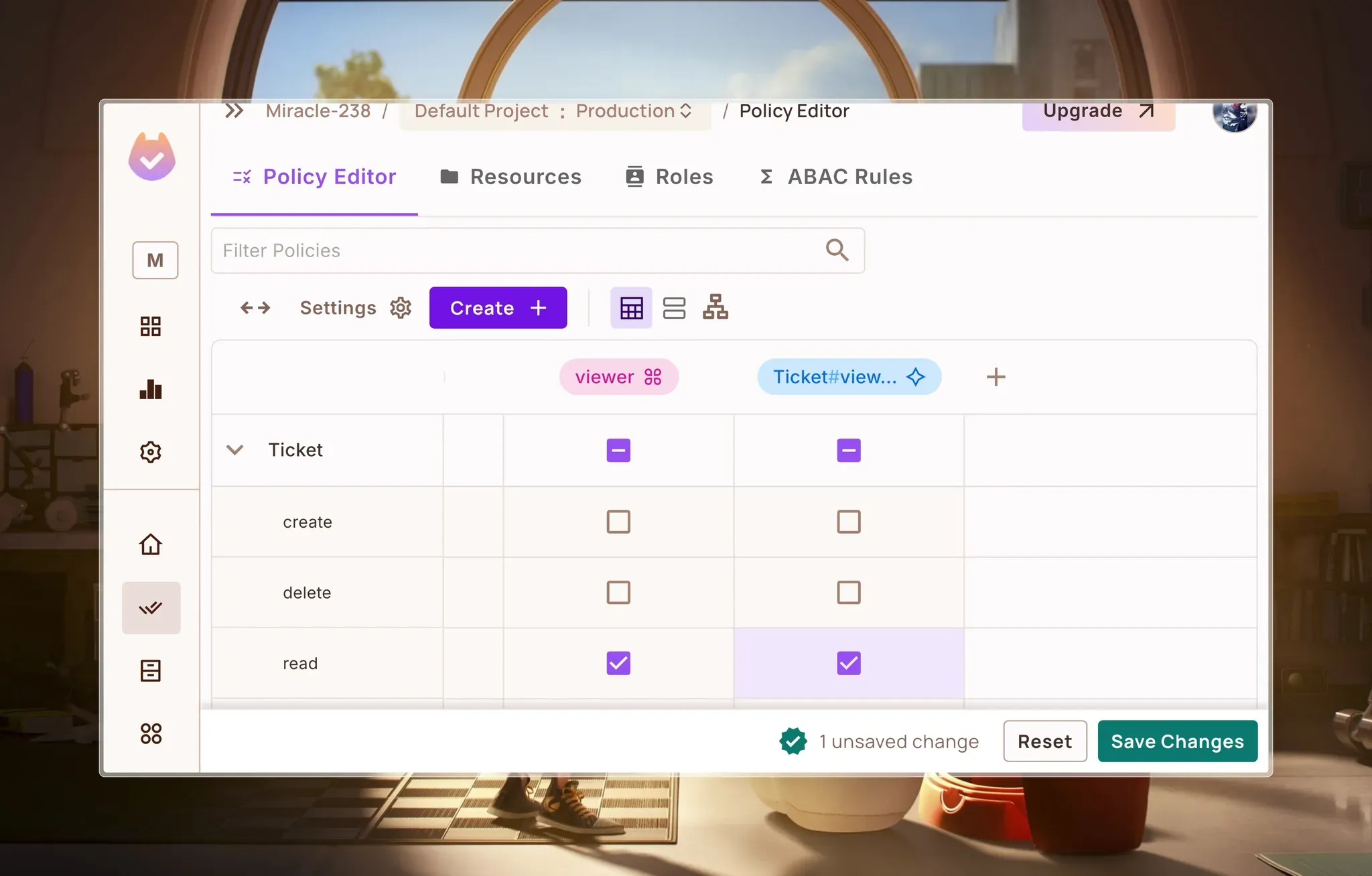
Click on the Save Changes button to save.
With that, our configured policies should look something like this:
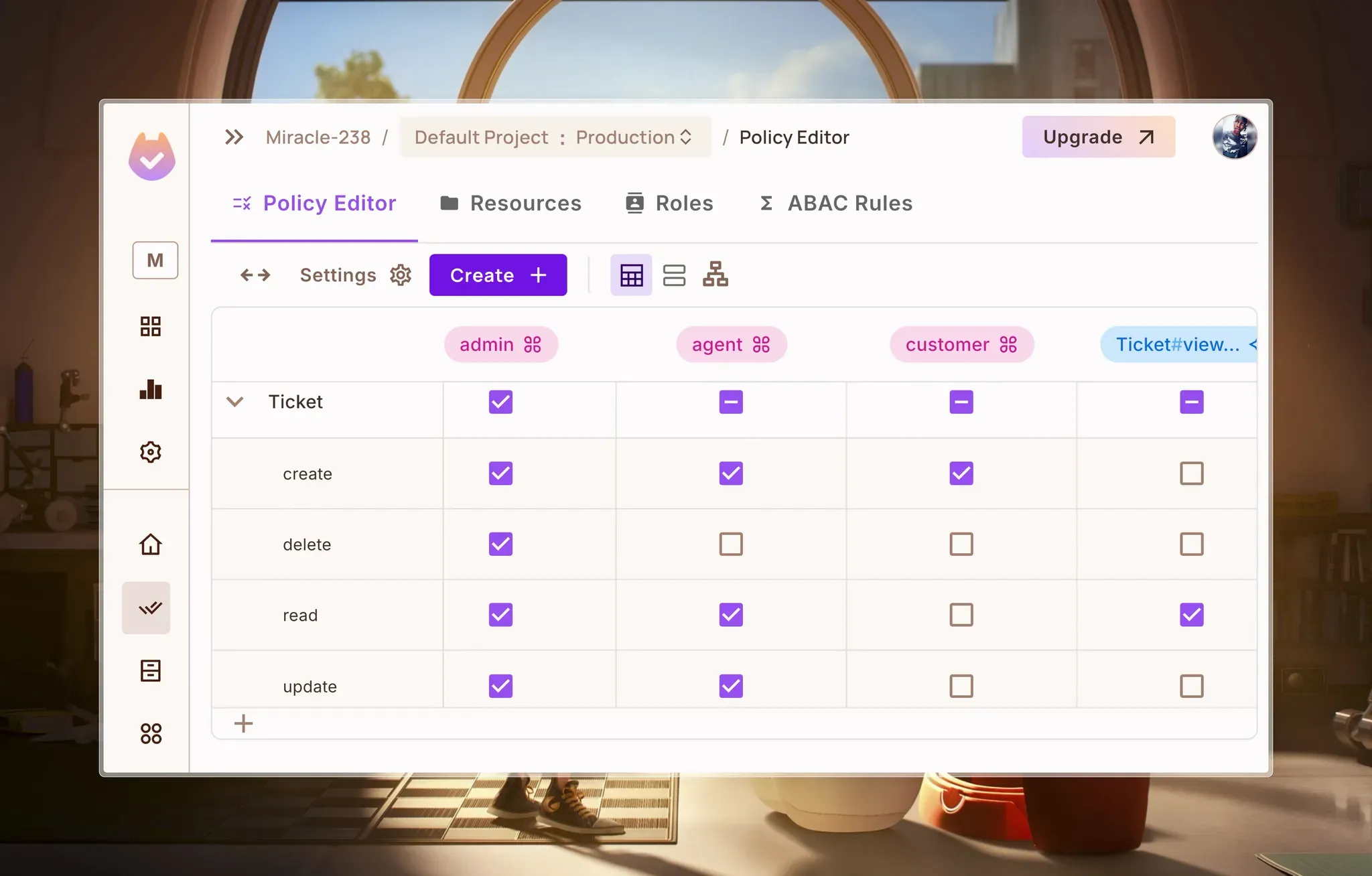
Important note: While we're using the term RBAC throughout this article, our implementation actually includes elements of more fine-grained access control through resource-level roles like the Ticket#viewer instance role we just configured.
This approach allows for the creation of instance-based permissions (giving customers access to view their own tickets) without implementing full Relationship-Based Access Control (ReBAC).
For more complex scenarios, this model could be extended to leverage Permit.io's complete ReBAC capabilities, where permissions can be derived through relationships between resources and across tenants, allowing for a full-blown ReBAC setup.
With our permission model set up in Permit.io, we now have a structured approach to managing multi-tenant access control. By defining roles, resources, and policies, we’ve ensured that users interact with support tickets according to their assigned permissions.
Next, we’ll set up our application to see how we can integrate Permit.io to handle authorization.
Setting Up the Project
To speed things up a bit, I’ve created a simple starter project with a few packages installed, including:
- Express – A fast, unopinionated, and minimalist Node.js web framework for building APIs and server-side applications.
- Mongoose – An elegant MongoDB ODM (Object Data Modeling) library for Node.js that simplifies schema definition and database interaction.
- JSON Web Token (JWT) – A compact, URL-safe means of representing claims to be transferred between two parties, used for secure authentication and authorization.
- Bcrypt – A library to help hash passwords, providing enhanced security for user credentials.
Let’s get the project running:
Clone the project to your machine in any folder of your choice by running the following command:
git clone <https://github.com/permitio/mongo-rbac-example.git>
cd permit-mongo-express-app
Install dependencies:
npm install
Create a .env file in the project root:
PORT=9316
MONGO_URI=mongodb://localhost:27017/permit-express-mongo-app
JWT_SECRET=your_secret_key_here
PERMIT_API_KEY=your_permit_api_key
Important Note: This tutorial uses MongoDB’s enableLocalhostAuthBypass feature, which allows unrestricted access to the database when connecting from localhost , instead creating a database user.
In production, you must create a MongoDB user with appropriate built-in or custom roles (e.g., readWrite, dbAdmin, etc.), and connect using secure authentication.
Refer to MongoDB’s Authentication docs for more details.
Run the project with:
npm run dev

> permit-mongo-express-app@1.0.0 dev
> nodemon

[nodemon] 3.1.9
[nodemon] to restart at any time, enter `rs`
[nodemon] watching path(s): src/**/*
[nodemon] watching extensions: ts
[nodemon] starting `npm start`

> permit-mongo-express-app@1.0.0 start
> npm run build && node ./dist/index.js

> permit-mongo-express-app@1.0.0 build
> tsc

Server running on <http://localhost:9316>
Network Address at <http://192.168.0.109:9316>
With the project set up, let’s integrate Permit.io
Integrating Permit.io In our Express App
Before we can sync data to Permit.io, we'll integrate Permit.io into our app by:
- Deploying a local Policy Decision Point (PDP) using Docker
- Installing the Permit SDK in our Express application
- Creating utility functions for user synchronization and role assignment, permission checks, and more.
Set up a local PDP
First, we’ll have to set up our Policy Decision Point, which is a network node responsible for answering authorization queries using policies and contextual data.
Pull the PDP container from Docker Hub (Install Docker Here):
docker pull permitio/pdp-v2:latest
Run the container & replace the *PDP_API_KEY* environment variable with your API key:
docker run -it \\
  -p 7766:7000 \\
  --env PDP_API_KEY=<YOUR_API_KEY> \\
  --env PDP_DEBUG=True \\
  permitio/pdp-v2:latest
Now that we have our PDP set up, let’s dive into adding authorization to our app.
Install Permit in our Express App
In your terminal, navigate to the project folder and install Permit SDK
npm install permitio
Create a new file - *./lib/permit.ts*:
// ./src/lib/permit.ts
import { Permit } from "permitio";
const PERMIT_TOKEN = process.env.PERMIT_API_KEY;

const permit = new Permit({
  // you'll have to set the PDP url to the PDP you've deployedin the previous step
  pdp: "<http://localhost:7766>",
  token: PERMIT_TOKEN,
});
export default permit;
Next, we’ll create a few functions for assigning roles, checking permissions, and more using Permit:
Sync User
Syncing a user registers their information in Permit.io, ensuring their roles and permissions are up to date for access control enforcement. Learn more.
Let’s create a Permit.io utility function to sync users. Create a new file - ./src/utils/permit/syncUser.ts:
// ./src/utils/permit/syncUser.ts

import permit from "../../lib/permit";
import { IUser } from "../../models/User";

/**
 * Sync a user to Permit.io when they sign up.
 * This function creates a user entry in Permit.io and assigns them a default role.
 *
 * @param {IUser} user - The user object containing user details.
 * @param {string} tenantId - The ID of the tenant the user belongs to.
 */
const syncUserToPermit = async (user: IUser, tenantId: string) => {
  try {
    // Create or update the user in Permit.io
    await permit.api.users.sync({
      key: user._id.toString(), // Unique identifier for the user
      email: user.email, // User's email address
      first_name: user.username.split(" ")[0], // Extract the first name from the username
      last_name: user.username.split(" ")[1] || "", // Extract the last name or default to an empty string
    });

    // Assign the user a default role ("viewer") in the specified tenant
    await permit.api.users.assignRole({
      user: user._id.toString(), // Reference the user by their unique ID
      role: "viewer", // Assign the "viewer" role
      tenant: tenantId, // Specify the tenant the user belongs to
    });
  } catch (error) {
    // Log any errors encountered during the sync process
    console.error("Error syncing user to Permit:", error);
  }
};

export default syncUserToPermit;
Here, we’re using the permit.api.syncUser method to synchronize user data with Permit.io, ensuring the user is registered in the system.
Then, we assign the user a default "viewer" role for a specific tenant using permit.api.users.assignRole.
If anything goes wrong, we catch and log the error.
We’ll use this syncUserToPermit function during user registration, so in the ./src/controllers/authController.ts file, in the registerUser function, we will call the syncUserToPermit function after the user has been created in MongoDB:
// ./src/controllers/authController.ts

// ...

export const registerUser = async (req, res) => {
  try {
    // ...

    await user.save();

    // sync user to permit
    await syncUserToPermit(user, "default");

    // ...
  } catch (error) {
    // ...
  }
};
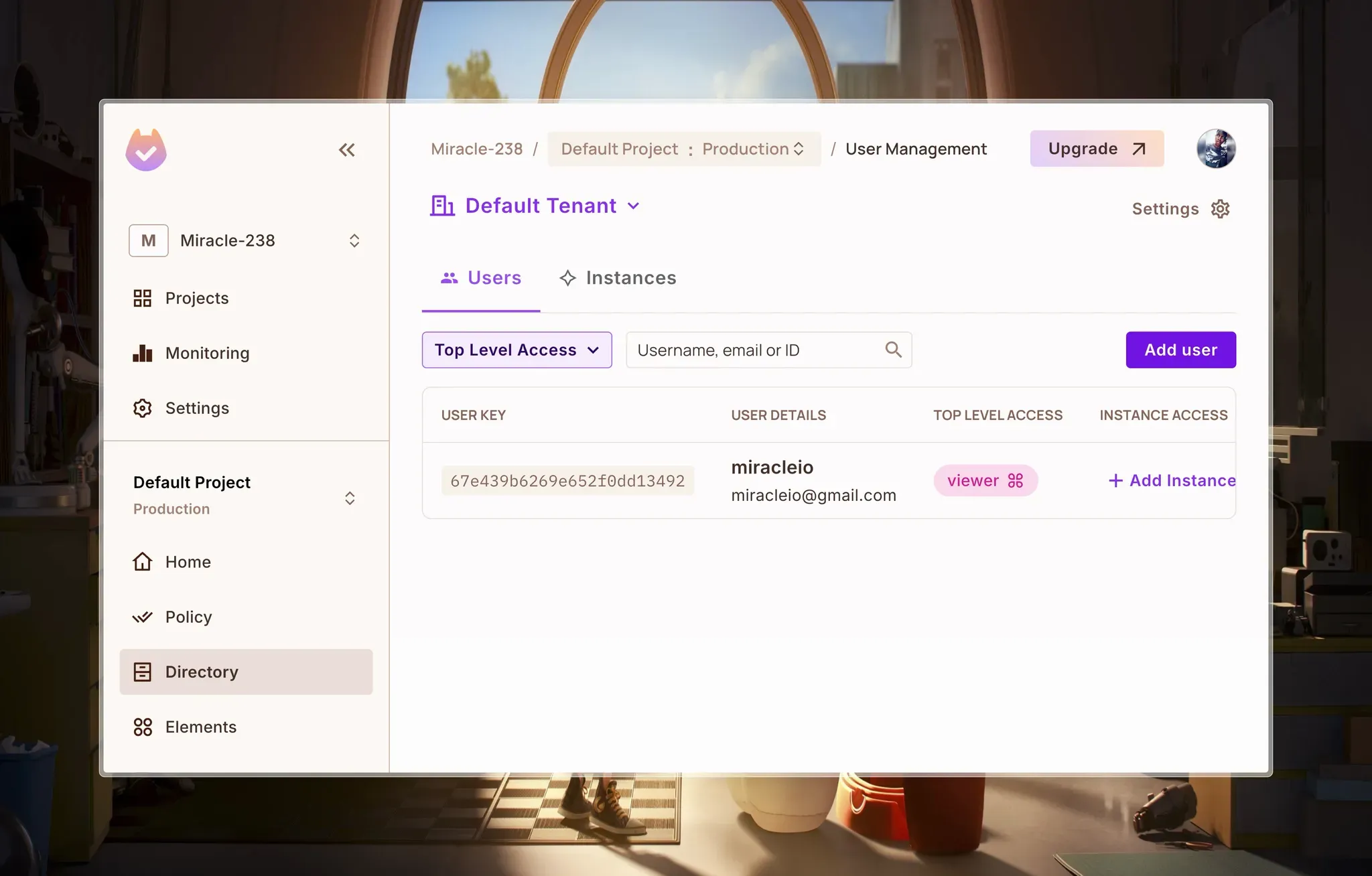
With that, when a user is created, that user is automatically synced to Permit and given a role of “viewer” in the default tenant:
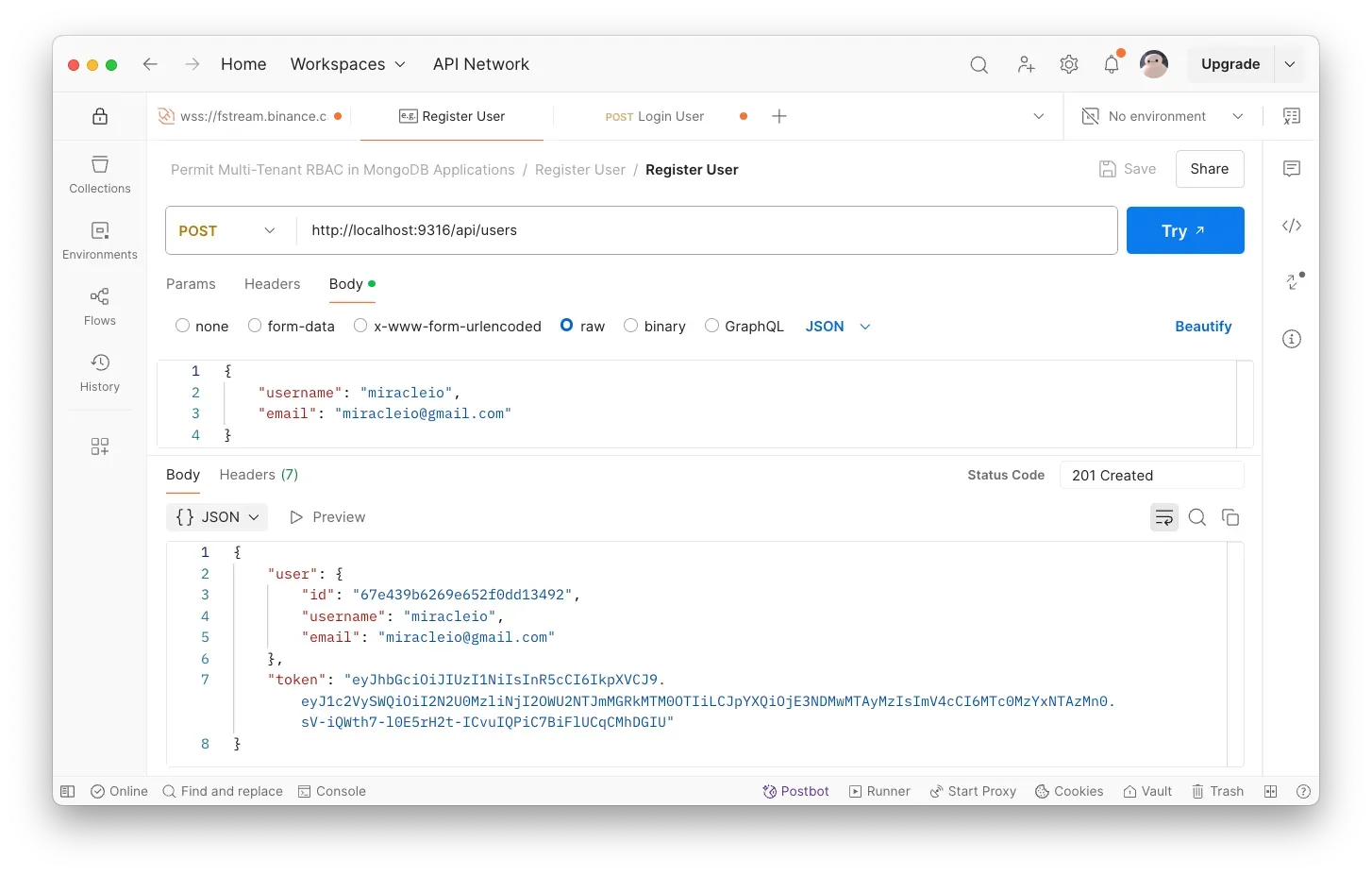
Here’s how we create a new user:
Here’s the user in Permit:
Awesome. Next, we’re going to create tenants to whom the users and resources will be assigned.
Create Tenants
To create a tenant, we’ll use the createTenant method available in the Permit SDK to create a new tenant when a user creates a company in MongoDB.
Create a new file - ./src/utils/permit/createTenant.ts:
// ./src/utils/permit/createTenant.ts
import permit from "../../lib/permit";

/**
 * Creates a new tenant in the Permit.io authorization platform
 * Handles tenant creation and provides error logging
 *
 * @param {Object} options - Configuration options for creating a tenant
 * @param {string} options.name - The name of the tenant to be created
 * @param {string} options.key - A unique identifier or key for the tenant
 * @returns {Promise<Object|null>} The created tenant object or null if creation fails
 */
const createTenant = async ({
  name,
  key,
}: {
  name: string;
  key: string;
}): Promise<object | null> => {
  try {
    // Call Permit.io API to create a new tenant with provided name and key
    const tenant = await permit.api.createTenant({
      name,
      key,
    });

    // Return the created tenant object
    return tenant;
  } catch (error) {
    // Log any errors encountered during tenant creation
    console.error("Error creating tenant:", error);

    // Return null to indicate tenant creation failure
    return null;
  }
};

export default createTenant;
Here, we’re using the permit.api.createTenant method to create a tenant in Permit.
Assign Role
Let’s also create a helper function we can call whenever we want to perform a role assignment. Create a new file - ./src/utils/permit/assignRole.ts:
// ./src/utils/permit/assignRole.ts
import permit from "../../lib/permit";
import { IUser } from "../../models/User";

/**
 * Assigns a specific role to a user within a given tenant in the Permit.io authorization platform
 * Provides a centralized method for managing user roles across the application
 *
 * @param {Object} options - Configuration options for role assignment
 * @param {IUser} options.user - The user to whom the role will be assigned
 * @param {string} options.role - The name of the role to be assigned
 * @param {string} options.tenantId - The unique identifier of the tenant context
 * @returns {Promise<void>} A promise that resolves when the role is assigned or fails silently
 */
const assignRole = async ({
  user,
  role,
  tenantId,
  resource_instance,
}: {
  user: IUser;
  role: string;
  tenantId: string;
  resource_instance?: string;
}): Promise<void> => {
  try {
    // Use Permit.io API to assign the specified role to the user within the given tenant
    await permit.api.users.assignRole({
      role, // The name of the role
      user: user?.id, // The unique user identifier
      tenant: tenantId, // The tenant context for the role assignment
      ...(resource_instance && { resource_instance }), // The unique identifier of the resource instance
    });
  } catch (error) {
    // Log any errors encountered during role assignment
    // Fails silently to prevent role assignment from blocking critical workflows
    console.error("Error assigning role:", error);
  }
};

export default assignRole;
This function will be used in the createCompany method in ./src/controllers/companyController.ts to assign the user that created the company/tenant, the admin role.
Now that we have our createTenant and assignRole functions, we can go to the ./src/controllers/companyController.ts, and make the following modifications:
// ./src/controllers/companyController.ts

// ...

export const createCompany = async (req, res) => {
  // ...

  try {
    // ...

    // Save the new company within the transaction
    await company.save({ session });

    // create tenant in Permit.io
    await createTenant({
      key: company?.id,
      name: company.name,
    });

    // Create a membership record to associate the creator with the company
    const membership = new Membership({
      user: req.user._id,
      company: company._id,
      createdBy: req.user._id,
    });

    // Save the membership within the same transaction
    await membership.save({ session });

    // sync user to new tenant in Permit.io
    await syncUserToPermit(req.user, company?.id);

    // assign admin role to the creator in the new tenant
    await assignRole({
      user: req.user,
      tenantId: company?.id,
      role: "admin",
    });

    // ...
  } catch (error) {
    // ...
  }
};
Here, we integrate Permit.io for role-based access control (RBAC) when creating a company.
createTenant registers the company as a tenant in Permit.io, creating an isolated permission space.syncUserToPermit ensures the creator is recognized in this new tenant, linking them to its permission system.assignRole grants the creator the admin role, allowing them to manage access and add members.
These changes ensure each company has its own access control structure, with the creator automatically assigned as an admin.
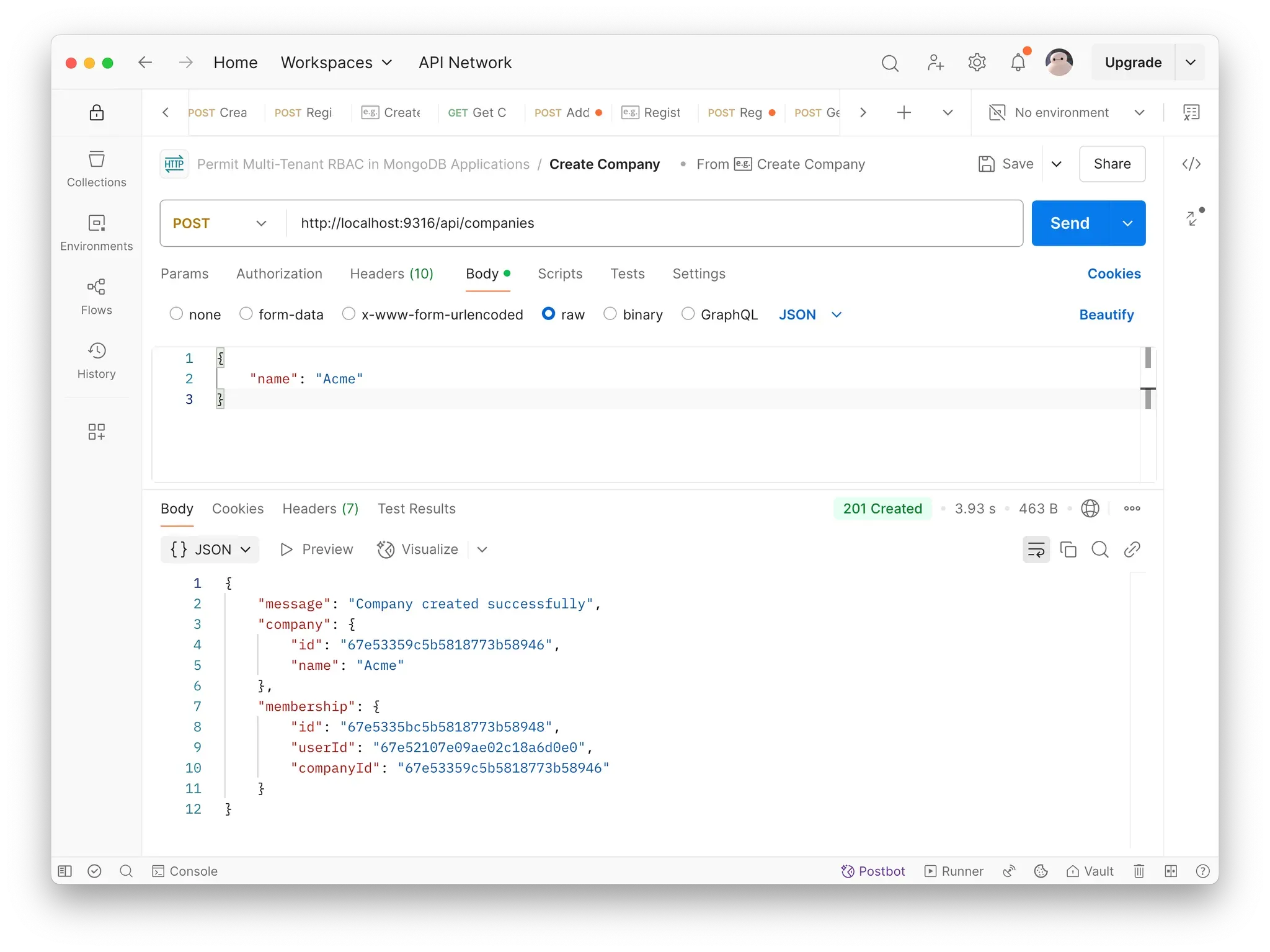
Now, if we create a company by sending a POST request to http://localhost:9316/api/companies:
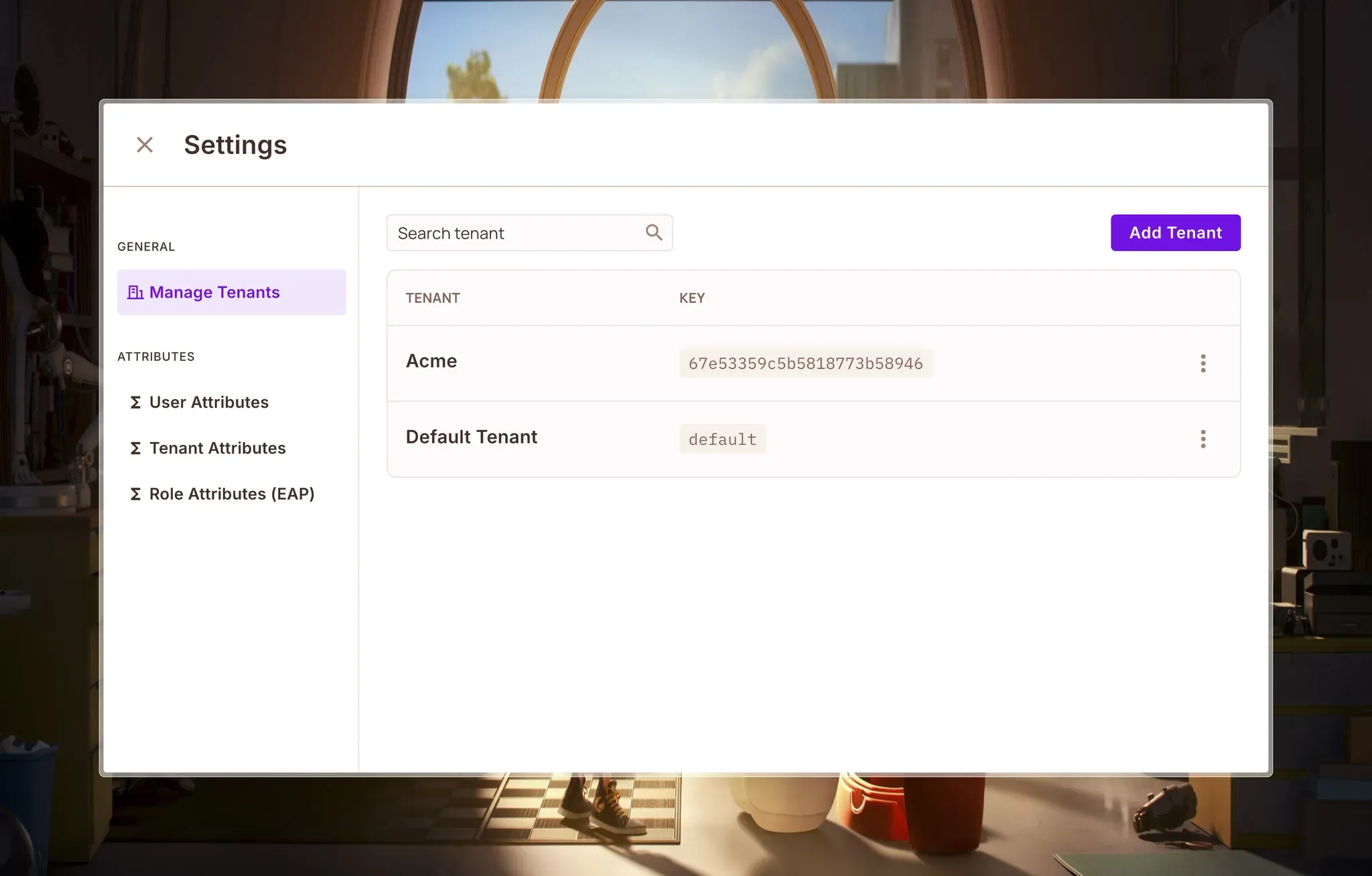
We should see our new tenant when we navigate to the Settings page by clicking on the Settings button at the top right of the Directory page:
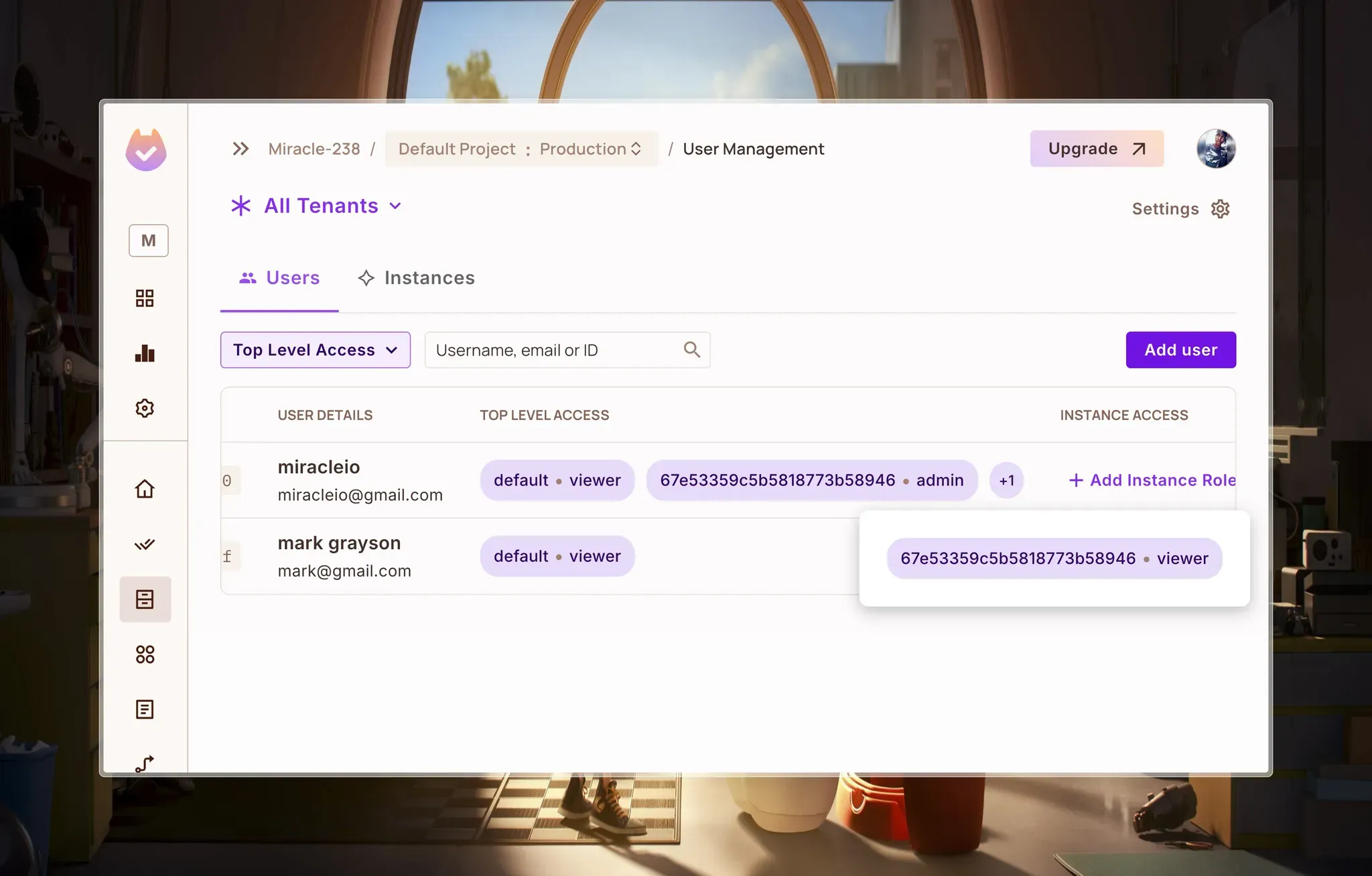
We will also see the tenant-based roles assigned to our users:
Splendid!
Assign Member Roles
Additionally, we can assign roles to users that are being added to a company, such as customers and agents. We can make this possible by modifying the addMemberToCompany function in ./src/controllers/companyController.ts:
// ./src/controllers/companyController.ts
// ...

export const addMemberToCompany = async (req, res) => {
  try {
    const { companyId, userId, role } = req.body;

    // ...

    // Save the new membership
    await membership.save();

    // assign "customer" or "agent" role to user in Permit.io
    await assignRole({
      role: role == "agent" ? "agent" : "customer",
      user: await User.findById(userId),
      tenantId: companyId,
    });

    // ...
  } catch (error) {
    // ...
  }
};
Here, the addMemberToCompany function has been updated to integrate Permit.io for role-based access control when adding members to a company.
- Role Assignment: Uses
assignRole to grant the user a customer or agent role within the company’s tenant.
- Seamless Integration: Retrieves the user from the database and assigns their role in Permit.io, keeping access control consistent.
This ensures that every new member gets appropriate permissions upon joining a company.
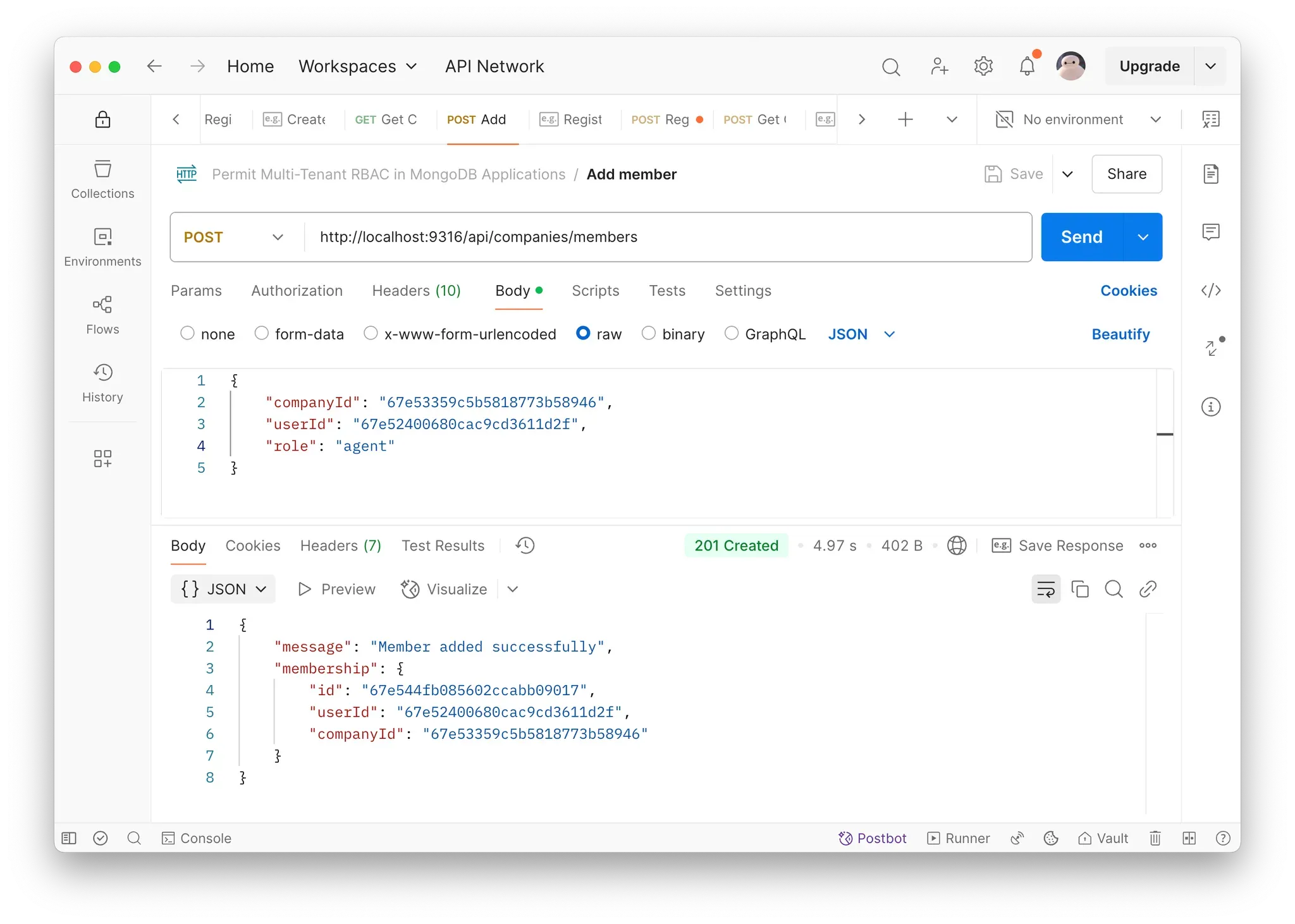
Now, if we send a POST request to http://localhost:9316/api/companies/members to add a member using the userId and companyId of the user and company respectively, along with the role:
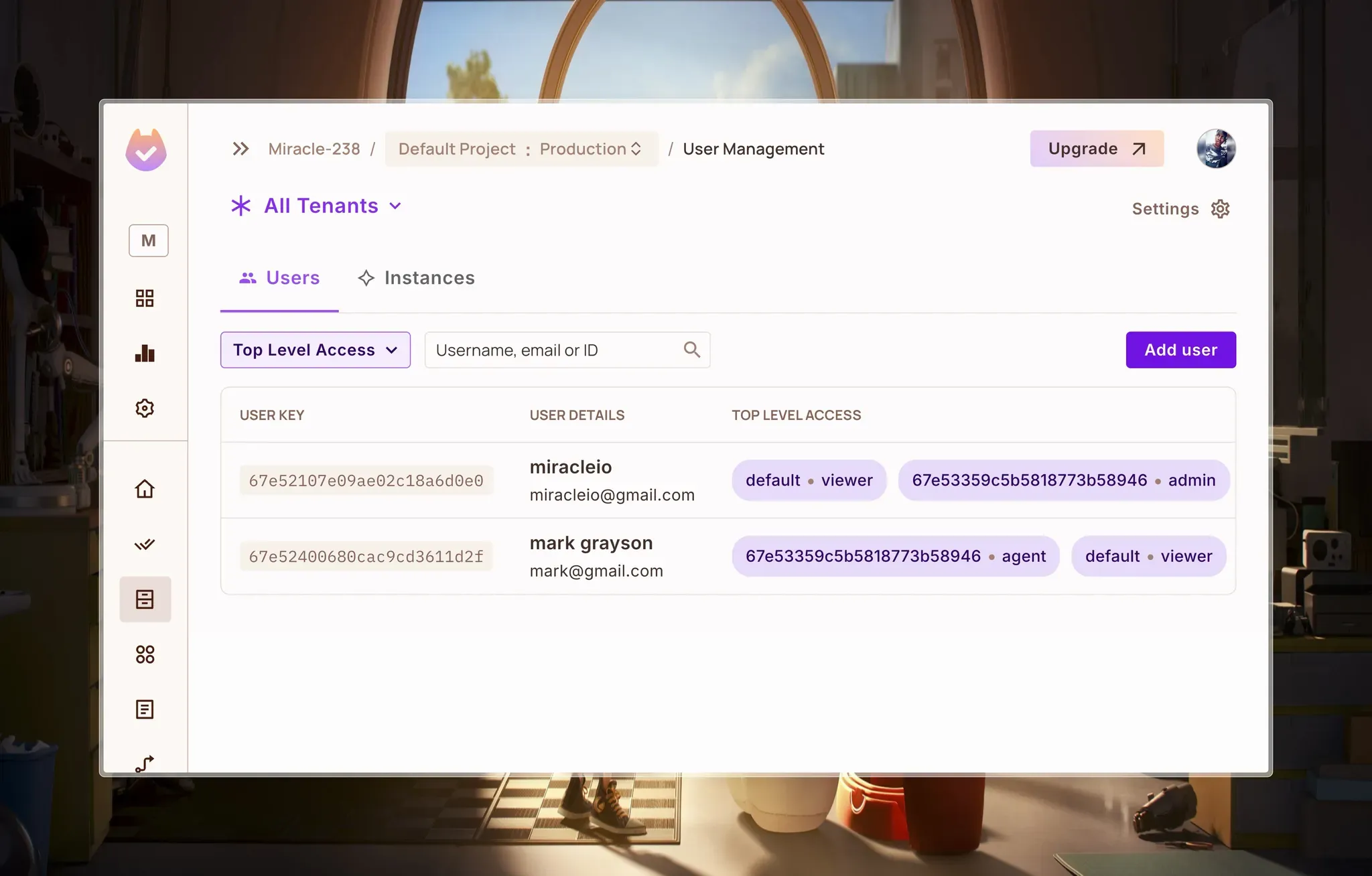
We should see that the user roles have been updated in the dashboard:
So far, we’ve covered creating users and tenants, and assigning roles in Permit.io. The next step is to create resource instances with which the permissions will be enforced.
Implementing Role-Based Access Control for CRUD Operations
Permission Checking Utility Function
We'll start by creating a centralized utility function for checking user permissions across our application. This function will serve as the core of our authorization strategy.
Create a new file - ./src/utils/permit/checkUserPermission.ts:
// ./src/utils/permit/checkUserPermission.ts
import { IResource } from "permitio";
import permit from "../../lib/permit";

/**
 * Checks if a user has permission to perform a specific action on a resource
 * Utilizes Permit.io's authorization API to validate user permissions
 *
 * @param {Object} options - Configuration options for permission checking
 * @param {string} options.user - The unique identifier of the user
 * @param {string} options.action - The action being attempted (e.g., 'read', 'write', 'delete')
 * @param {string | IResource} options.resource - The resource being accessed
 * @param {Record<string, any>} [options.context] - Optional context for more granular permission checks
 * @returns {Promise<boolean>} A promise resolving to whether the user has permission
 * @throws {Error} Throws an error if the permission check fails
 */
const checkUserPermission = async ({
  user,
  action,
  resource,
  context,
}: {
  user: string;
  action: string;
  resource: string | IResource;
  context?: Record<string, any>;
}): Promise<boolean> => {
  try {
    // Use Permit.io's check method to validate user permissions
    // Performs a comprehensive permission check based on user, action, resource, and optional context
    const check = await permit.check(user, action, resource, context);

    // Log the permission check result for debugging and auditing purposes
    console.log("Permission check result:", check);

    // Return the boolean result of the permission check
    return check;
  } catch (error) {
    // Log any errors encountered during the permission check
    console.error("Error checking user permission:", error);

    // Throw a descriptive error to provide more context about the permission check failure
    throw new Error(`Failed to check user permission: ${error.message}`);
  }
};

export default checkUserPermission;
Here, we’re using Permit.io's check method to validate user permissions. It takes four key parameters:
user: The unique identifier of the useraction: The specific action being attempted (create, read, update, delete)resource: The resource type and tenant contextcontext: Optional additional context for more granular permissions
The function returns a boolean indicating whether the user is permitted to perform the specified action.
CRUD Operations with Fine-Grained Authorization
With the checkUserPermission function, we can implement the following CRUD operations in our Ticket controller. Create a new file, ./src/controllers/ticketController.ts:
Creating Tickets: Enforcing Creation Permissions
Let’s implement a secure ticket creation process that validates user permissions before allowing resource creation in the createTicket method:
// ./src/controllers/ticketController.ts

import Ticket from "../models/Ticket";
import Membership from "../models/Membership";
import mongoose from "mongoose";
import checkUserPermission from "../utils/permit/checkUserPermission";
import createResourceInstance from "../utils/permit/createResourceInstance";
import assignRole from "../utils/permit/assignRole";
import { ICompany } from "../models/Company";

/**
 * Creates a new ticket within a specific company
 * Uses a MongoDB transaction to ensure data consistency
 * @param req Express request object containing ticket details
 * @param res Express response object for sending back results
 */
export const createTicket = async (req, res) => {
  const session = await mongoose.startSession();
  session.startTransaction();

  try {
    const { subject, description, companyId } = req.body;

    // Verify user authentication and company membership
    if (!req.user) {
      return res.status(401).json({ error: "Authentication required" });
    }

    // Check permission to create ticket in this company
    const permitted = await checkUserPermission({
      user: req.user._id.toString(),
      action: "create",
      resource: {
        type: "Ticket",
        tenant: companyId.toString(),
      },
    });

    if (!permitted) {
      return res.status(403).json({ error: "Permission denied" });
    }
After validating permissions, we can proceed with creating the ticket and assigning roles:
    // Create new ticket
    const ticket = new Ticket({
      subject,
      description,
      createdBy: req.user._id,
      company: companyId,
      status: "open",
    });

    // Save ticket within transaction
    await ticket.save({ session });

    // Create resource in Permit.io
    await createResourceInstance({
      key: ticket._id.toString(),
      resource: "Ticket",
      tenant: companyId.toString(),
    });

    // assign viewer instance role
    await assignRole({
      user: req.user,
      role: "viewer",
      resource_instance: `Ticket:${ticket._id.toString()}`,
      tenantId: companyId.toString(),
    });

    // Commit transaction
    await session.commitTransaction();
    session.endSession();

    res.status(201).json({
      message: "Ticket created successfully",
      ticket: {
        id: ticket._id,
        subject: ticket.subject,
        description: ticket.description,
        status: ticket.status,
      },
    });
  } catch (error) {
    await session.abortTransaction();
    session.endSession();

    console.error(error);
    res.status(500).json({ error: "Server error while creating ticket" });
  }
};
The createTicket method ensures secure ticket creation by:
- Checking user authentication
- Calling
checkUserPermission to validate create access
- Verifying the user has permission within the specific company (tenant)
- Creating the ticket only if permission is granted
- Assigning the Ticket#viewer instance role which will allow users with the customer role to be able to view the tickets they created using the
assignRole function.
Updating Tickets: Validating Modification Rights
Next, we develop a secure ticket update mechanism that checks user permissions before allowing modifications:
/**
 * Updates an existing ticket
 * @param req Express request object containing ticket update details
 * @param res Express response object for sending back update result
 */
export const updateTicket = async (req, res) => {
  try {
    const { ticketId } = req.params;
    const updateData = req.body;

    if (!req.user) {
      return res.status(401).json({ error: "Authentication required" });
    }

    // Find the ticket and ensure it exists
    const ticket = await Ticket.findById(ticketId).populate<{
      company: ICompany;
    }>("company");
    if (!ticket) {
      return res.status(404).json({ error: "Ticket not found" });
    }

    // Check permission to update ticket
    const permitted = await checkUserPermission({
      user: req.user._id.toString(),
      action: "update",
      resource: {
        type: "Ticket",
        tenant: ticket.company._id.toString(),
      },
    });

    if (!permitted) {
      return res.status(403).json({ error: "Permission denied" });
    }

    // Update ticket
    Object.assign(ticket, updateData);
    await ticket.save();

    res.json({
      message: "Ticket updated successfully",
      ticket: {
        id: ticket._id,
        subject: ticket.subject,
        status: ticket.status,
      },
    });
  } catch (error) {
    console.error(error);
    res.status(500).json({ error: "Server error while updating ticket" });
  }
};
The updateTicket method secures ticket modifications by:
- Retrieving the specific ticket
- Checking user permissions for updating the ticket
- Verifying access within the specific company (tenant)
- Applying updates only if permission is granted
Deleting Tickets: Enforcing Deletion Permissions
Next, we implement a ticket deletion process that validates user permissions before allowing resource removal.
/**
 * Deletes a ticket
 * @param req Express request object containing ticket ID
 * @param res Express response object for sending back deletion result
 */
export const deleteTicket = async (req, res) => {
  try {
    const { ticketId } = req.params;

    if (!req.user) {
      return res.status(401).json({ error: "Authentication required" });
    }

    // Find the ticket and ensure it exists
    const ticket = await Ticket.findById(ticketId).populate<{
      company: ICompany;
    }>("company");
    if (!ticket) {
      return res.status(404).json({ error: "Ticket not found" });
    }

    // Check permission to delete ticket
    const permitted = await checkUserPermission({
      user: req.user._id.toString(),
      action: "delete",
      resource: {
        type: "Ticket",
        tenant: ticket.company._id.toString(),
      },
    });

    if (!permitted) {
      return res.status(403).json({ error: "Permission denied" });
    }

    // Delete ticket
    await Ticket.findByIdAndDelete(ticketId);

    // Delete resource instance from Permit.io
    await permit.api.resourceInstances.delete(ticketId);

    res.json({
      message: "Ticket deleted successfully",
      ticketId,
    });
  } catch (error) {
    console.error(error);
    res.status(500).json({ error: "Server error while deleting ticket" });
  }
};
The deleteTicket method ensures secure ticket deletion by:
- Locating the specific ticket
- Validating user permissions for deletion
- Checking access within the specific company (tenant)
- Performing deletion only if permission is granted
- Deleting the resource instance from Permit.io as well using the
permit.api.resourceInstances.delete method.
Next, we create our ticket routes file - ./src/routes/ticketRoutes.ts that will call the respective ticket controller functions for POST, PUT and DELETE operations:
// ./src/routes/ticketRoutes.ts

import express from "express";
import {
  createTicket,
  getTicketsForUser,
  updateTicket,
  deleteTicket,
} from "../controllers/ticketController";
import { authMiddleware } from "../middleware/auth";

const router = express.Router();

// Create a new ticket (requires authentication)
router.post("/", authMiddleware, createTicket);

// Update a specific ticket (requires authentication)
router.put("/:ticketId", authMiddleware, updateTicket);

// Delete a specific ticket (requires authentication)
router.delete("/:ticketId", authMiddleware, deleteTicket);

export default router;
Finally, we’ll update the ./src/index.ts file to include the ticket routes:
// ./src/index.ts

// ...
import ticketRoutes from "./routes/ticketRoutes";
// ...

// ...
app.use("/api/tickets", ticketRoutes);

// ...
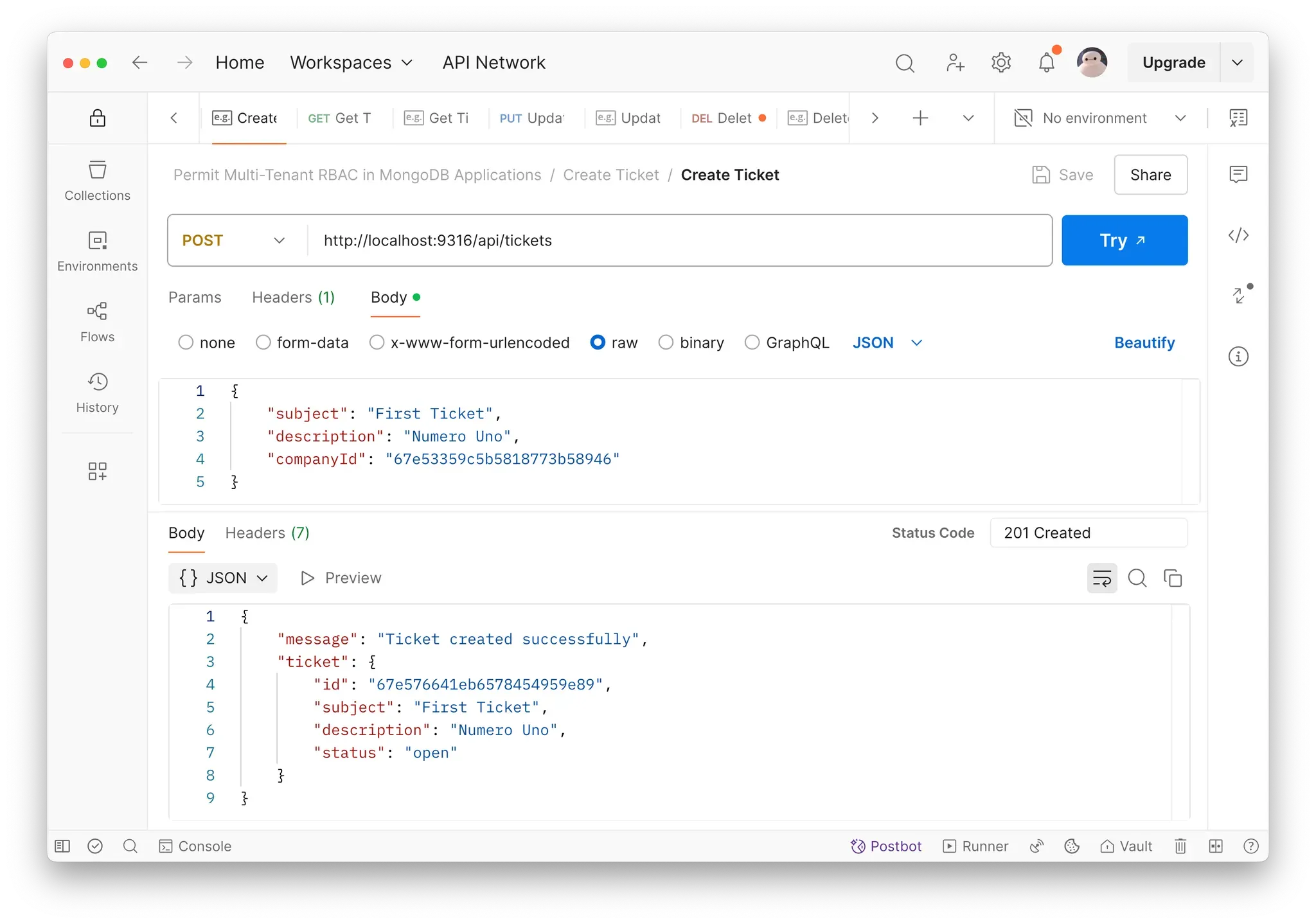
Now, if we create a new Ticket by making a POST request to http://localhost:9316/api/tickets, we should see the created ticket:
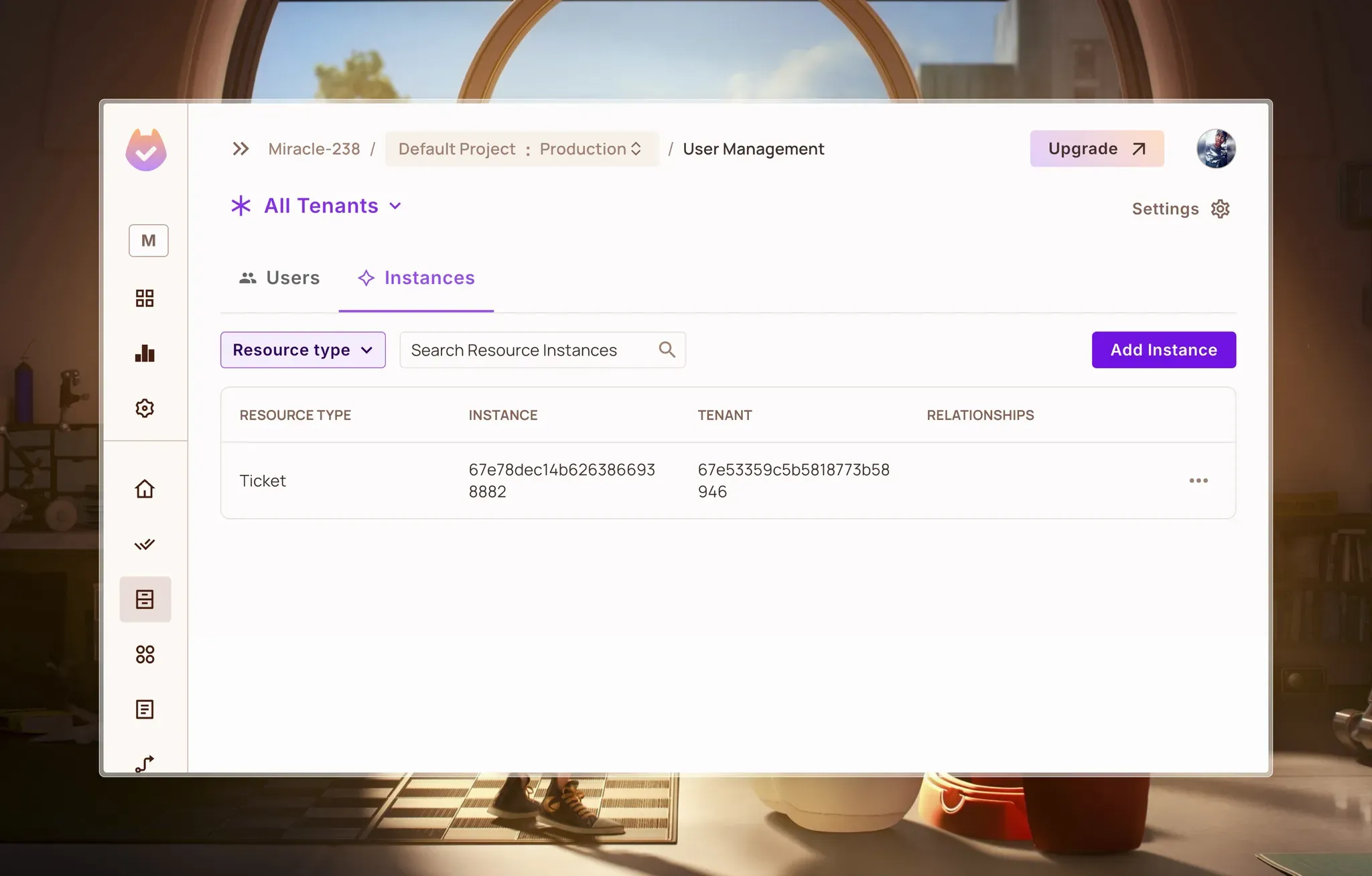
In our Permit.io dashboard, on the Instances page, we should see the newly created resource instance:
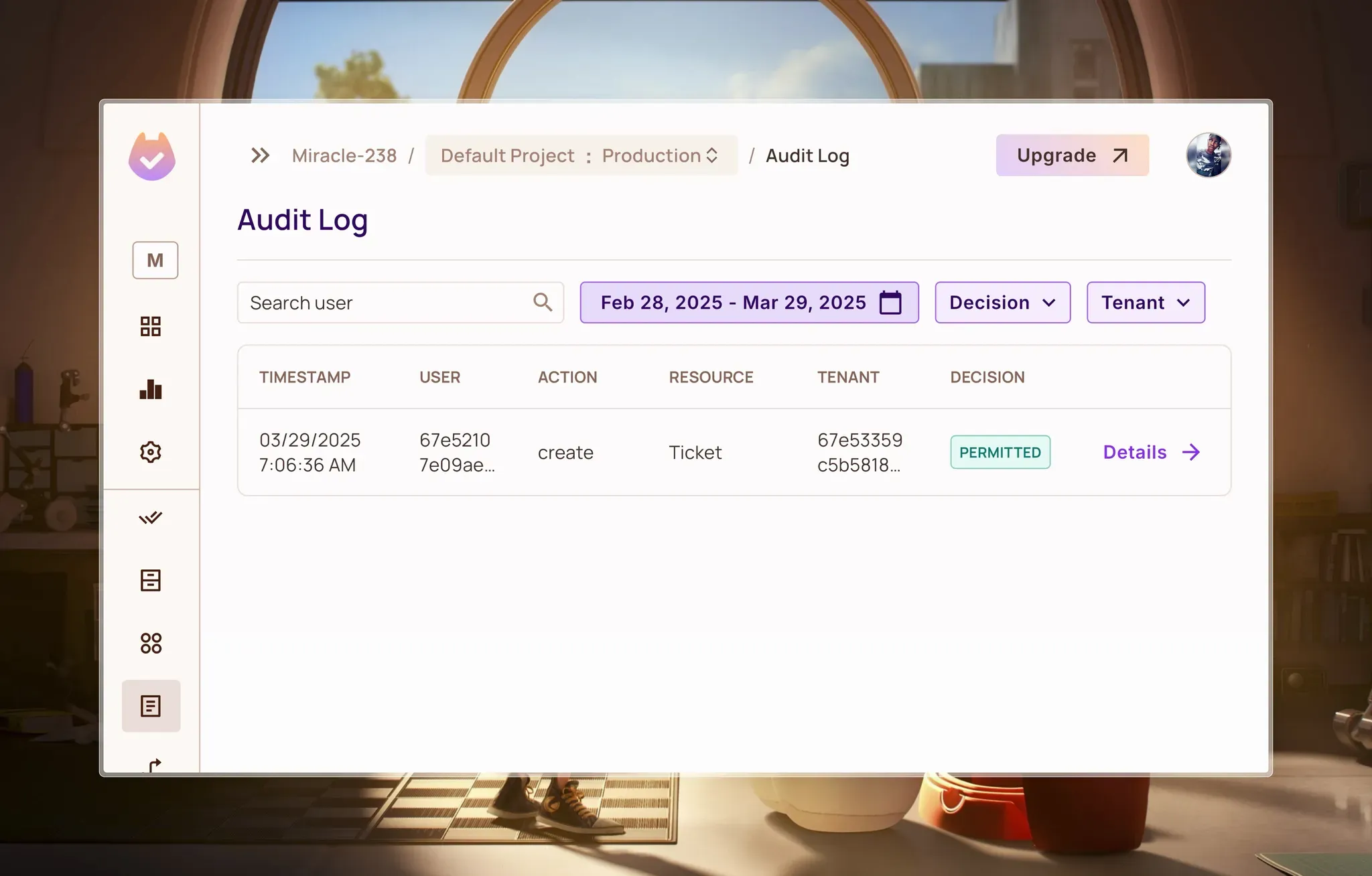
This operation was only successful because the user was a member of the company he created the ticket for. We can confirm this by inspecting our Audit Logs on Permit.io:
Now, click on details to get a detailed report on the event:
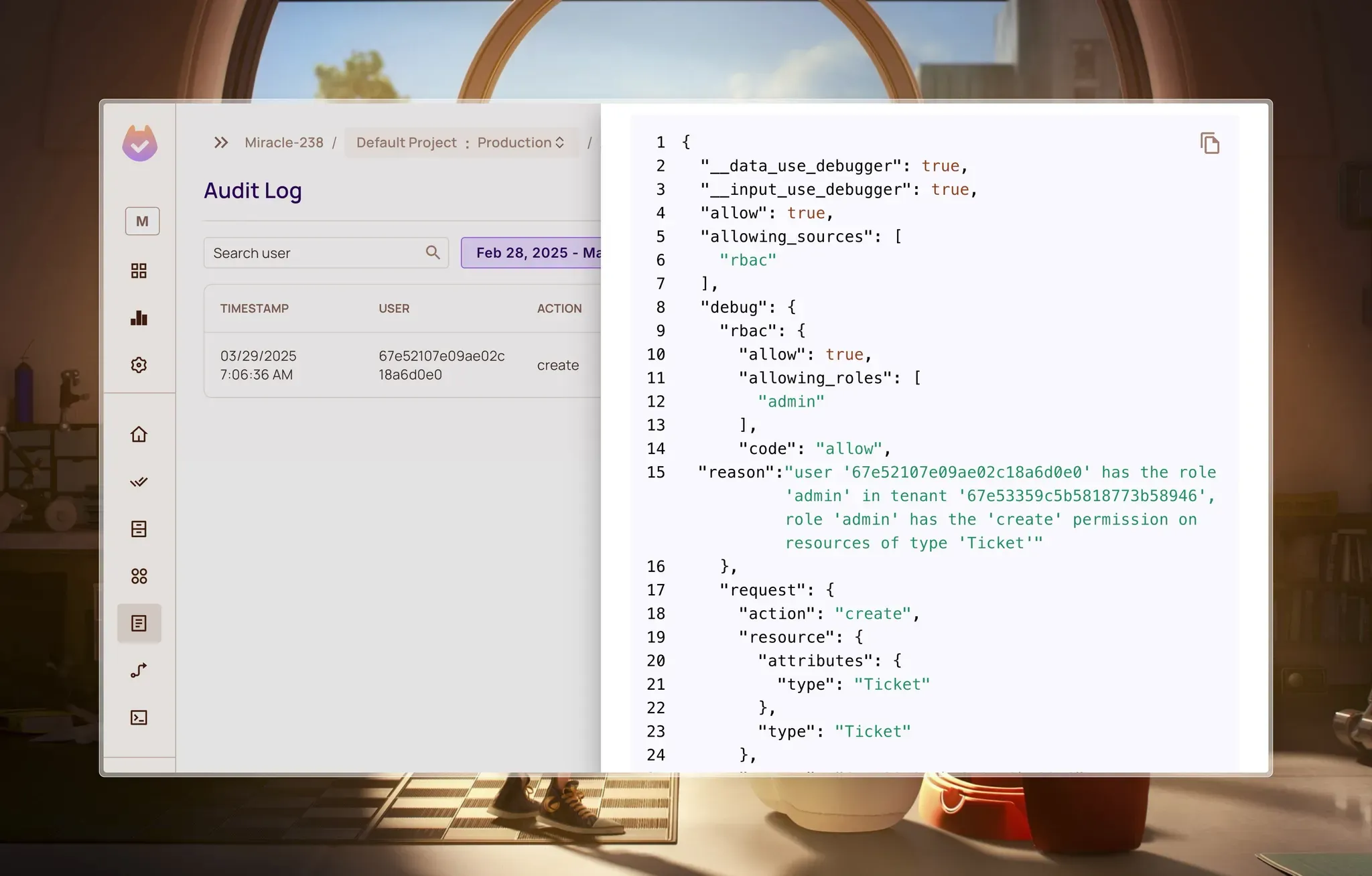
As you can see, Permit.io tells us if the action was allowed and also gives the reason.
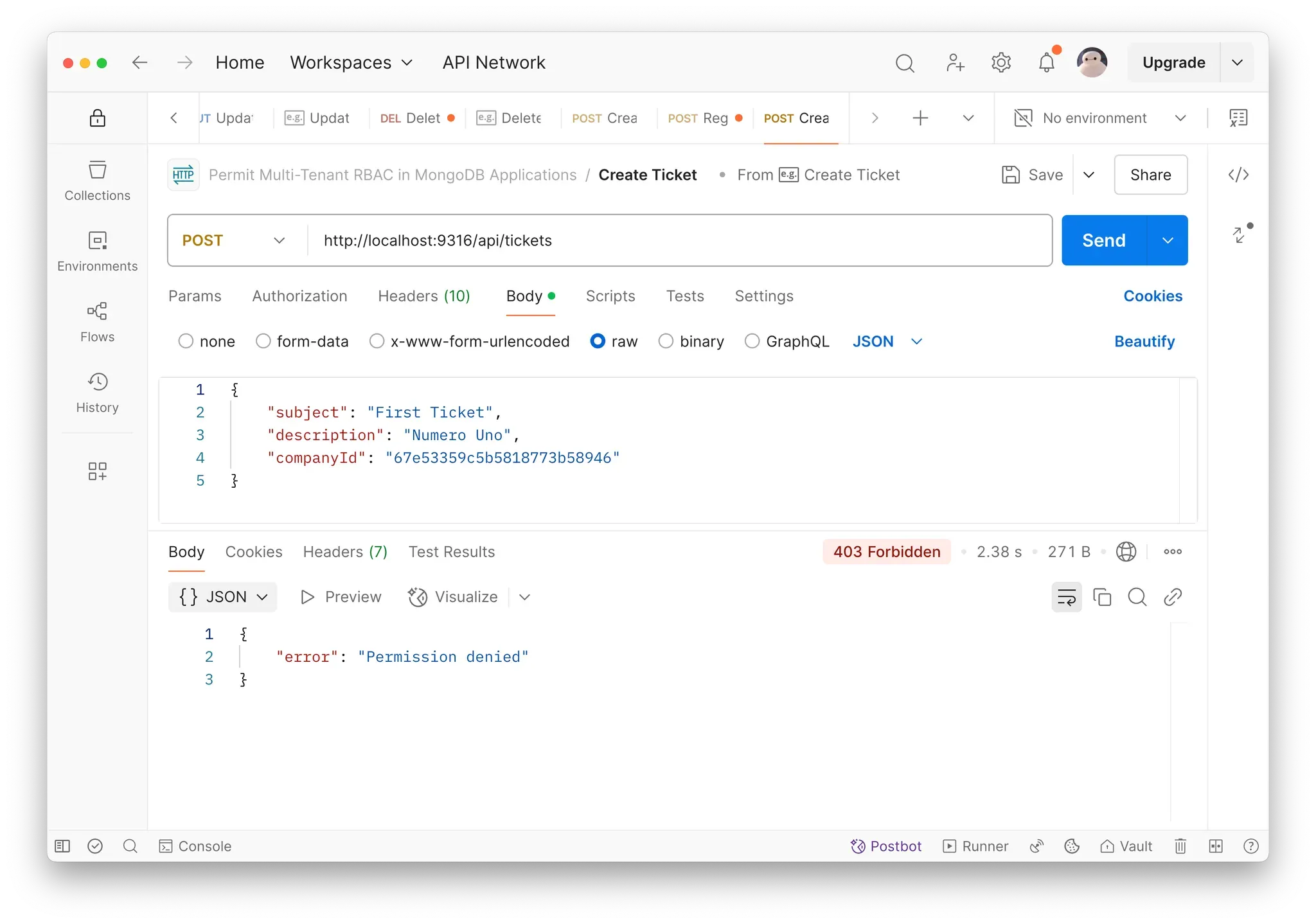
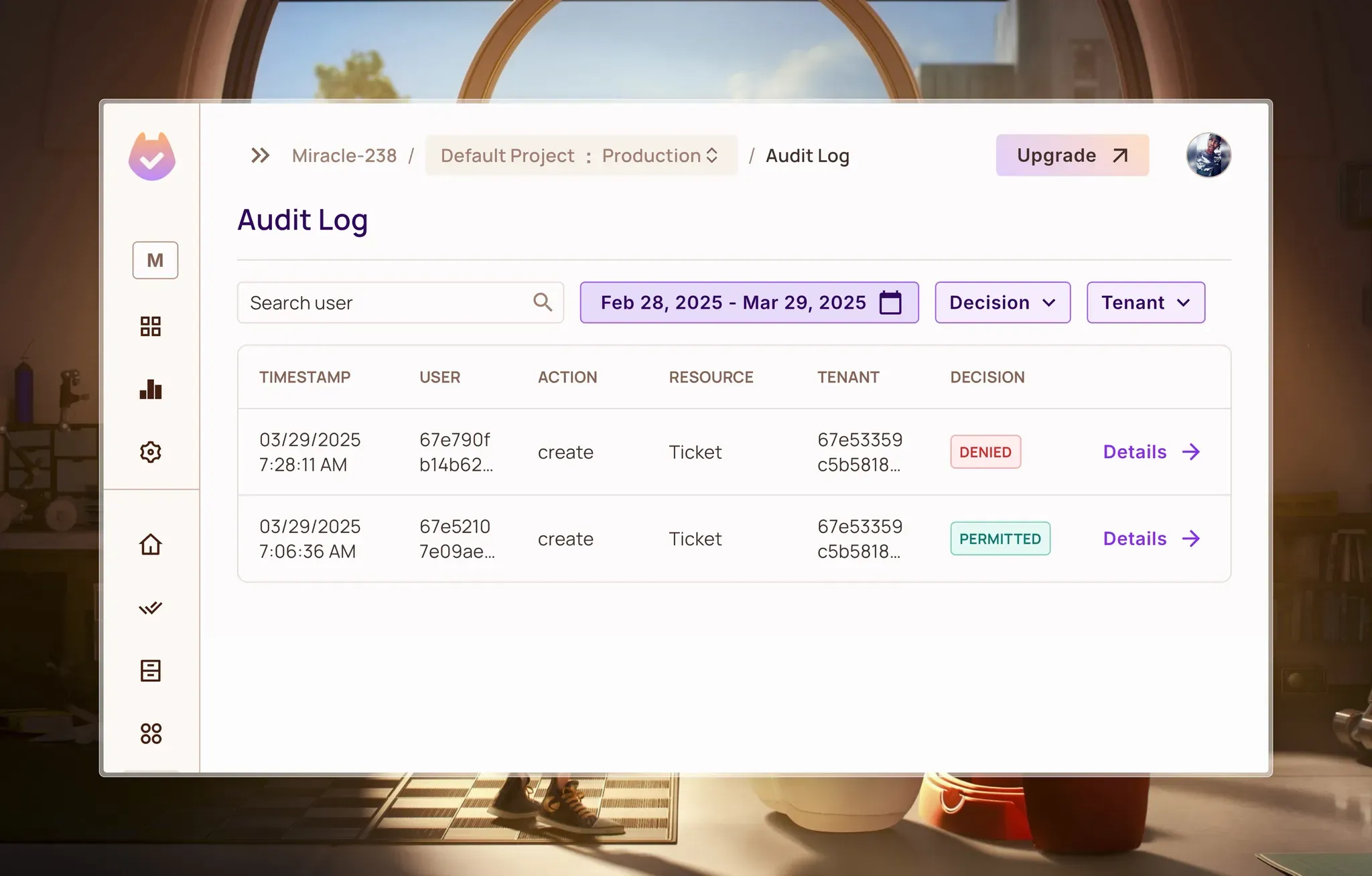
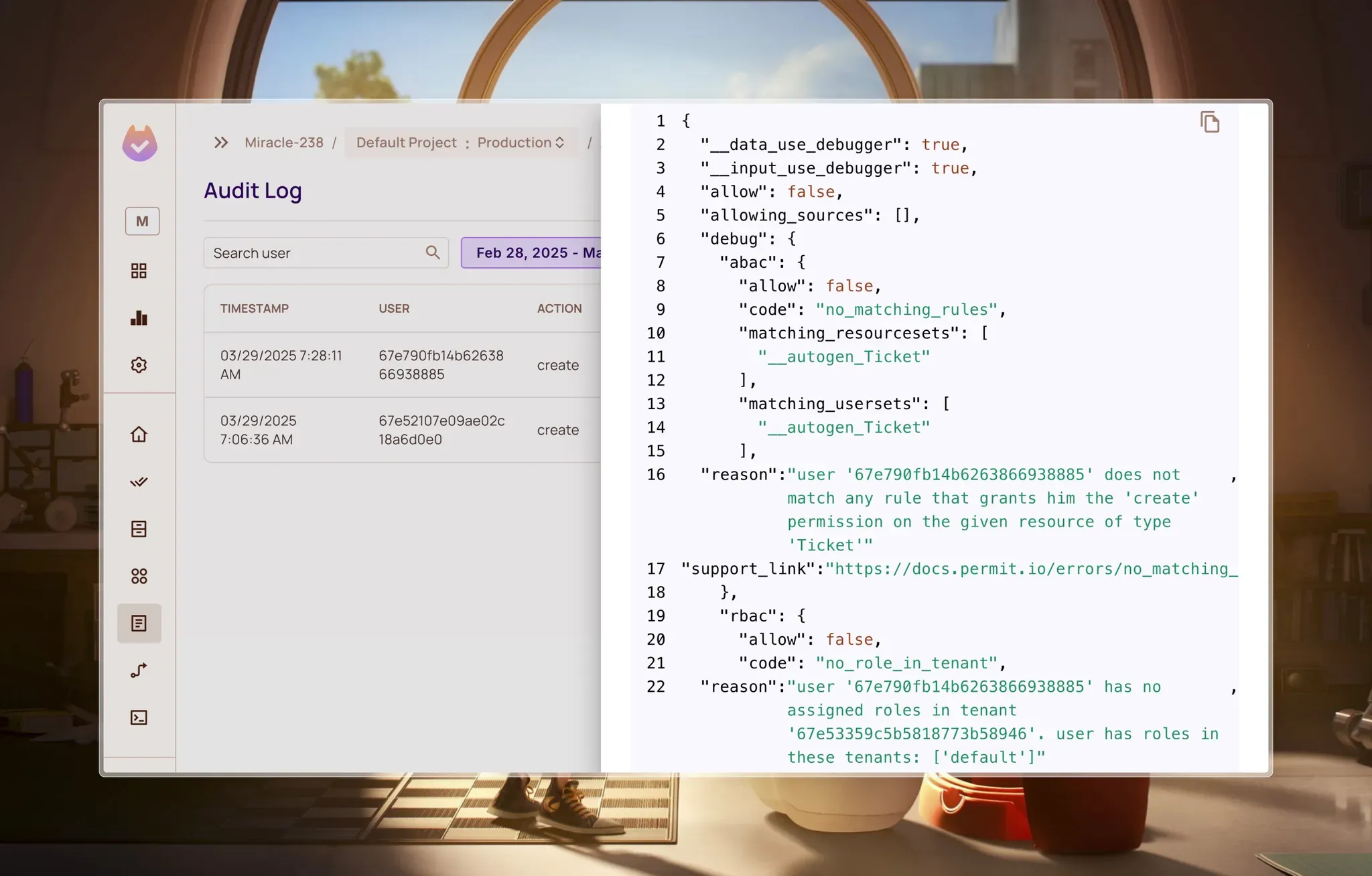
If we request to create a ticket in a company that the user does not belong to, we will see how Permit.io handles this.
First, the request will fail thanks to the checkPermission function we added to the createTicket controller:
And if we check the Audit Logs, we see that the action was denied:
Along with the reason:
Thanks to the checks we added in our other controllers, the same thing applies to update and delete operations.
Next, we’ll tackle a very vital part of enforcing permissions, data filtering.
Enforcing Permissions with PDP-Level Filtering
In multi-tenant applications, enforcing permissions isn't only about validating CRUD operations at the API level. A critical aspect of authorization is ensuring users can only view data they're permitted to access. This is where data filtering comes into play.
We’ll start with enforcing access control at the data access level using a concept known as Data Filtering.
Data Filtering with Permit.io
Data filtering controls which data a user can access based on their permissions, ensuring they only see authorized information.
Permit.io offers multiple approaches to data filtering:
- Application-Level Filtering: Fetching all data and filtering post-retrieval
- PDP-Level Filtering: Using permission checks to filter collections of objects
- Information Graph-Based Filtering: Leveraging pre-synchronized permission data
- Source-Level Filtering: Applying filtering at the database query level
For our MongoDB-based ticket system, we'll implement PDP-level filtering using Permit.io's bulkCheck method, which enables efficient permission validation for multiple resources in a single operation, and Information Graph-Based Filtering, which allows us to construct DB queries based on user permissions.
Implementing PDP-Level Filtering with bulkCheck
Let's create a utility function that filters tickets based on user permissions. Create a new file - ./src/utils/permit/filterTicketsByPermission.ts:
// ./src/utils/permit/filterTicketsByPermission.ts
import permit from "../../lib/permit";
import { ITicket } from "../../models/Ticket";

/**
 * Filters a list of tickets based on the user's read permissions
 * Performs a bulk permission check to efficiently validate access to multiple tickets
 *
 * @param {string} userId - The unique identifier of the user performing the permission check
 * @param {ITicket[]} tickets - An array of ticket documents to filter
 * @returns {Promise<ITicket[]>} A promise resolving to an array of tickets the user can read
 */
async function filterTicketsByPermission(
  userId: string,
  tickets: ITicket[],
): Promise<ITicket[]> {
  // If no tickets are provided, return an empty array
  if (!tickets.length) return [];

  // Prepare resource objects for bulk permission checking
  // Each resource represents a ticket with its type, key, and tenant context
  const resources = tickets.map((ticket) => ({
    type: "Ticket",
    key: ticket.id,
    tenant: ticket.company.toString(),
  }));

  // Perform a bulk permission check using Permit.io
  // Checks 'read' action for each ticket across all provided tickets
  const permissionResults = await permit.bulkCheck(
    resources.map((resource) => ({
      user: userId,
      resource,
      action: "read",
    })),
  );

  // Filter the tickets array to include only those where the permission check passed
  // Uses the index from permissionResults to determine ticket visibility
  return tickets.filter((_, index) => permissionResults[index]);
}

export default filterTicketsByPermission;
This utility function efficiently filters tickets based on user permissions using Permit.io's bulk authorization.
It maps each ticket to a resource object with the type "Ticket," the ticket's ID, and the company as the tenant context.
Instead of checking permissions individually, it uses bulkCheck() to validate all permissions in a single API call, significantly reducing latency.
The function then returns only the tickets for which the user has been granted "read" permission, ensuring proper access control and optimal performance.
Why Use bulkCheck?
The bulkCheck method provides several critical benefits for our multi-tenant application:
- Prevents Data Leakage: Ensures users never receive data they're not authorized to access
- Performance Optimization: Validates permissions for multiple resources in a single API call rather than making individual checks
- Tenant Isolation: Maintains proper data segregation between tenants
- Simplified Implementation: Provides a clean separation between data retrieval and permission enforcement
- Consistent Policy Application: Applies the same permission rules defined in Permit.io across the application
Integrating Permission Filtering in the Controller
Now let's implement the getTicketsForUser controller method to utilize our filtering utility. In the ./src/controllers/ticketController.ts file, add this fucntion:
// ./src/controllers/ticketController.ts
/**
 * Retrieves tickets for a user based on their permissions
 * @param req Express request object containing authenticated user
 * @param res Express response object for sending back ticket list
 */
export const getTicketsForUser = async (req, res) => {
  try {
    if (!req.user) {
      return res.status(401).json({ error: "Authentication required" });
    }

    // Find memberships to get all companies the user belongs to
    const memberships = await Membership.find({
      user: req.user._id,
    }).select("company");
    const companyIds = memberships.map((m) => m.company);

    // Find all tickets across user's companies
    const tickets = await Ticket.find({
      company: { $in: companyIds },
    });

    // Perform permission filtering
    const authorizedTickets = await filterTicketsByPermission(
      req.user._id.toString(),
      tickets,
    );

    res.json(authorizedTickets);
  } catch (error) {
    console.error(error);
    res.status(500).json({ error: "Server error while fetching tickets" });
  }
};
This controller retrieves tickets that a user is authorized to view through a two-stage filtering process.
First, it finds all companies the user belongs to by querying their memberships.
Then it fetches all tickets from these companies as a coarse initial filter.
Finally, it calls filterTicketsByPermission to apply fine-grained permission checks, ensuring users only see tickets they have explicit "read" access to based on their roles and permissions in the system.
Adding the Route
Finally, let's expose this functionality through our API by adding the route:
// ./src/routes/ticketRoutes.ts
import express from "express";
import {
  createTicket,
  getTicketsForUser,
  updateTicket,
  deleteTicket,
} from "../controllers/ticketController";
import { authMiddleware } from "../middleware/auth";

const router = express.Router();

// Get tickets for the authenticated user
router.get("/", authMiddleware, getTicketsForUser);

// Other routes...

export default router;
With our implementation complete, the application now effectively filters tickets based on user permissions:
- The user requests their tickets via the API
- The controller retrieves potential tickets from MongoDB
- Our
filterTicketsByPermission utility uses bulkCheck to validate access permissions
- Only authorized tickets are returned to the user
This approach ensures that regardless of the database query, users will only ever see tickets they have permission to access. The permission rules are consistently applied and centrally managed in Permit.io, making policy updates straightforward and immediately effective across the application.
For example, I’ve created two users in the GDA tenant:
- Rex Splode - Agent
- Random Civilian - Customer
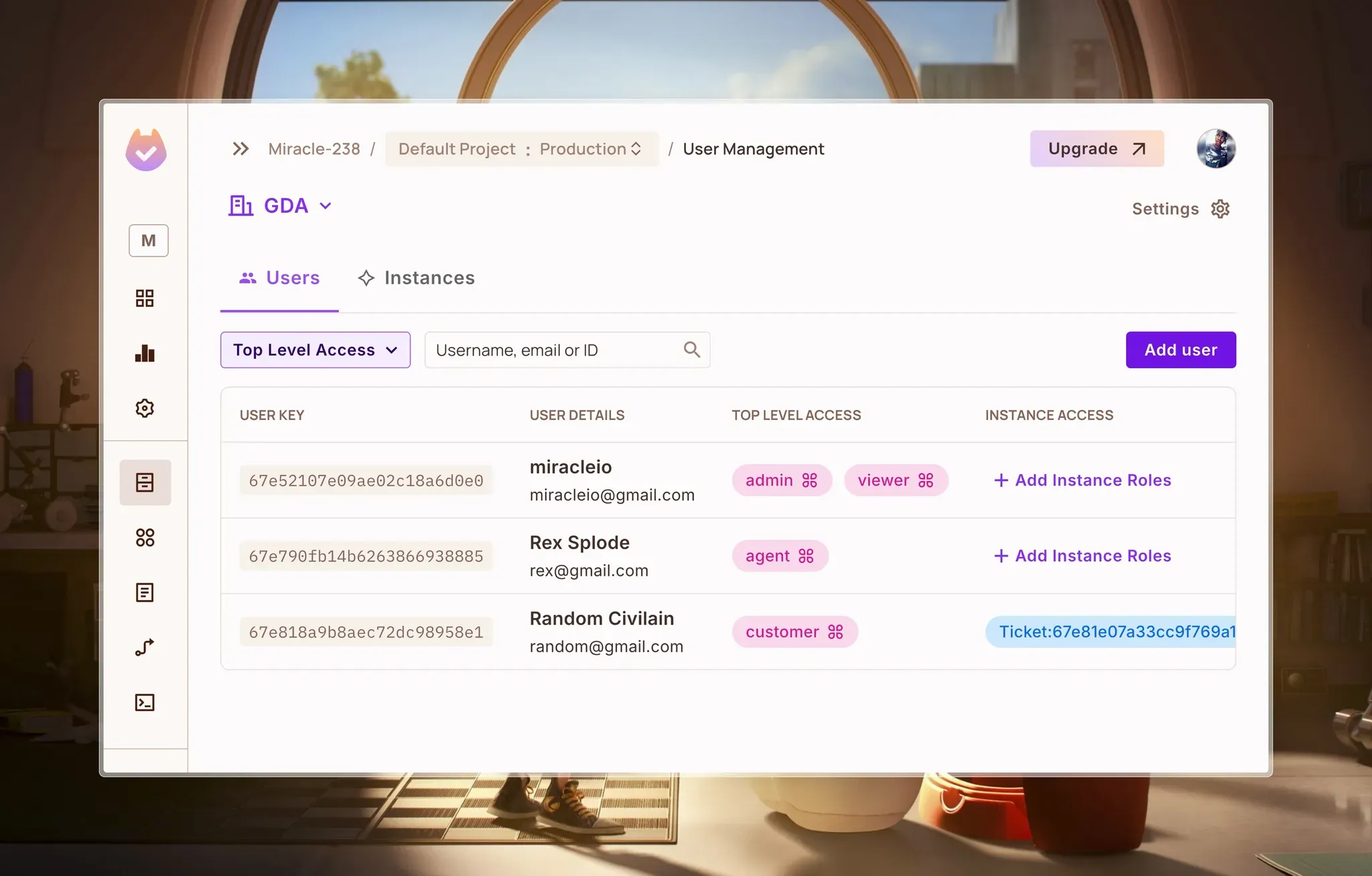
Here, you can see that the customer has an instance role of viewer on a ticket. This means that he should be able to see just that ticket where we have two ticket instances:
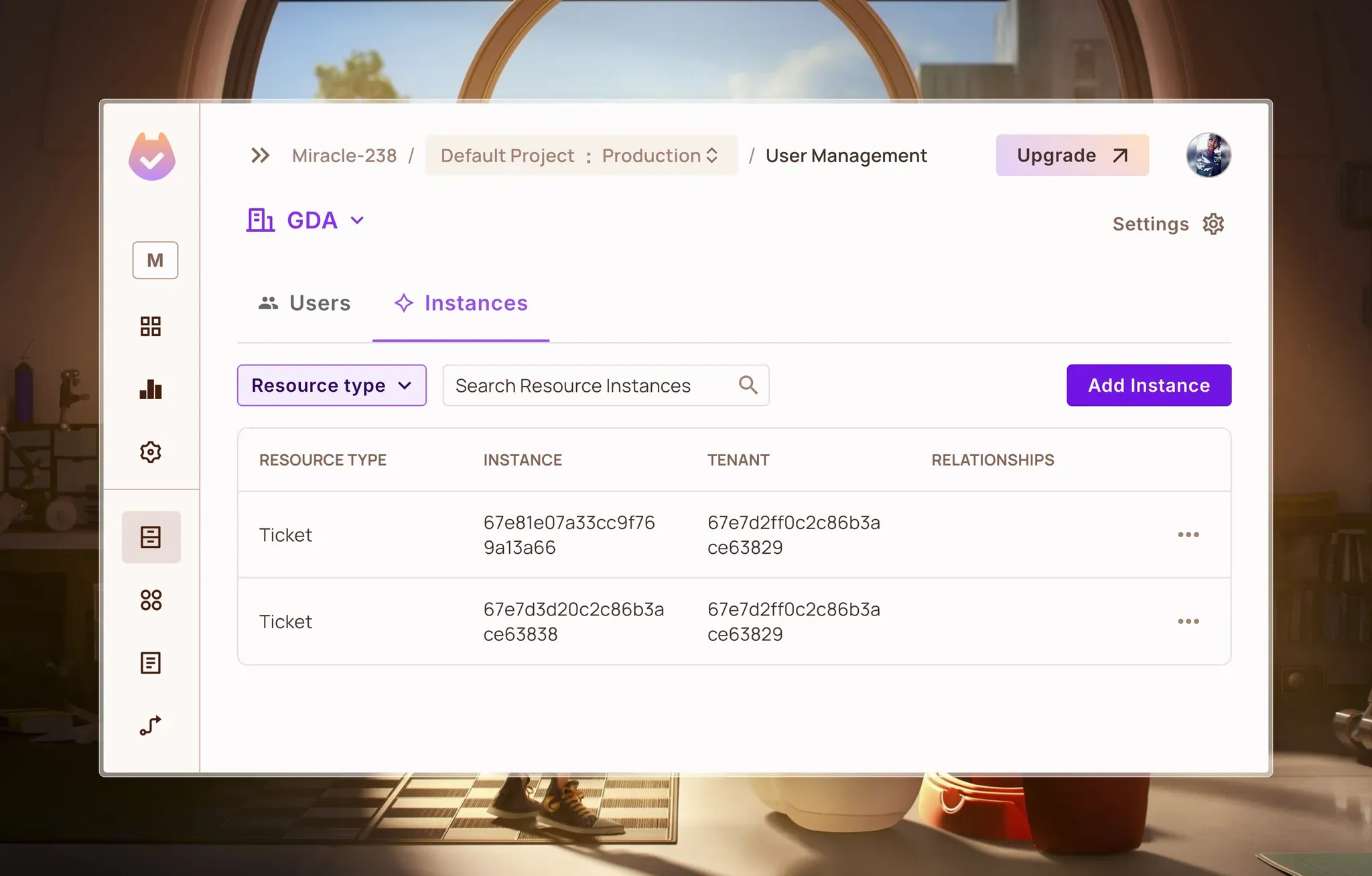
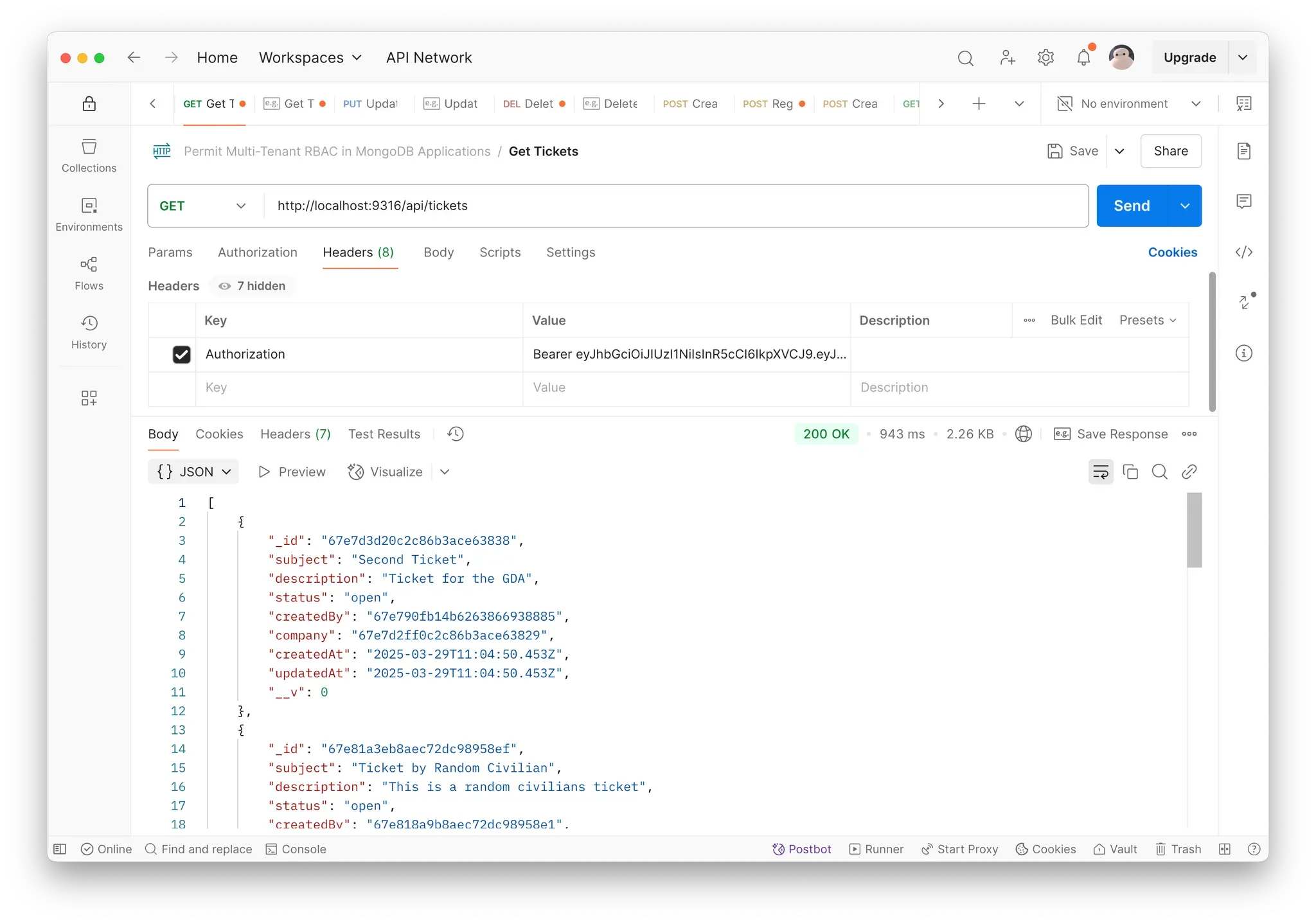
Now, if I sign in as the agent, I will see two tickets:
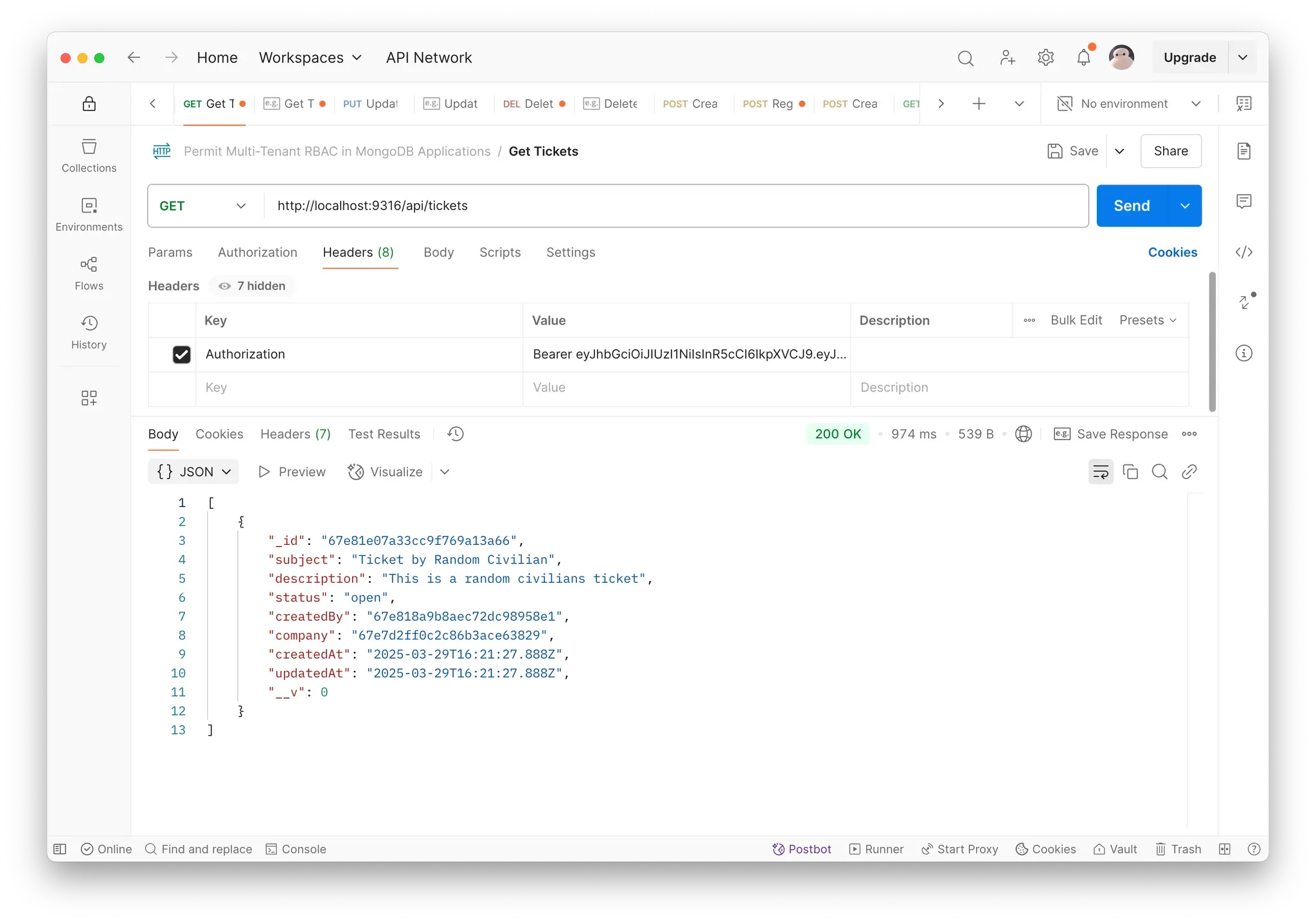
But if I sign in as the customer, I would only see the tickets I created:
Splendid!
By implementing PDP-level filtering with bulkCheck, we've completed our multi-tenant authorization system, ensuring each tenant's data remains properly isolated while enforcing fine-grained permissions based on user roles and relationships.
Next, we’ll explore another method of data filtering that is more efficient and scalable in most cases.
Implementing PDP-Level Filtering Based on the Information Graph
Filtering data using bulkCheck is more efficient than application-level filtering, but an even better approach is to create a custom query based on data that has already been synchronized with the PDP.
With this method, we can use functions like getUserPermissions (which returns all objects a user has access to) to build a Mongoose query that fetches only the tickets the user is allowed to see. Instead of retrieving all tickets and filtering them afterward, this approach filters the data at the database level, reducing processing time and improving performance.
To implement this, we’ll create a new utility function called filterQueryByPermission in a new file - ./src/utils/permit/filterQueryByPermission.ts:
// ./src/utils/permit/filterQueryByPermission.ts

import permit from "../../lib/permit";
import Membership from "../../models/Membership";

const filterQueryByPermission = async (userId: string) => {
  const memberships = await Membership.find({ user: userId });

  const companyIds = memberships.map((membership) => membership.company.toString());

  const userPermissions = await permit.getUserPermissions(userId, companyIds);

  const allowedPermissions = {
    allowedTenants: [], // Companies the user can access
    allowedTickets: [], // Tickets the user can access
  };

  Object.keys(userPermissions).forEach((key) => {
    const permissionSet = userPermissions[key].permissions;

    if (key.startsWith("__tenant") || key.startsWith("Tenant")) {
      // If the user has 'Ticket:read' permission for a tenant, allow access to its tickets
      if (permissionSet.includes("Ticket:read")) {
        allowedPermissions.allowedTenants.push(key.split(":")[1]);
      }
    } else if (key.startsWith("Ticket")) {
      // If the user has 'Ticket:read' permission for a specific ticket, allow access
      if (permissionSet.includes("Ticket:read")) {
        allowedPermissions.allowedTickets.push(key.split(":")[1]);
      }
    }
  });

	const query = {
    ...(allowedPermissions.allowedTenants.length > 0 && {
      company: { $in: allowedPermissions.allowedTenants },
    }),
    ...(allowedPermissions.allowedTickets.length > 0 && {
      _id: { $in: allowedPermissions.allowedTickets },
    }),
  };

  return query;
};

export default filterQueryByPermission;
With this function, we ensure that only the relevant data is queried from the database, rather than fetching everything and filtering it afterward. This approach significantly improves performance by reducing the amount of data processed at the application level.
Here’s a breakdown of how the code works:
By leveraging PDP-based filtering Based on the Information Graph, we eliminate unnecessary data retrieval and enforce security at the query level. This improves efficiency and ensures that users can only access the tickets they are authorized to view.
Now, let’s replace the filterTicketsByPermission method in our ticket controller with this new and improved filterQueryByPermission. In the ./src/controllers/ticketController.ts file:
import filterQueryByPermission from "../utils/permit/filterQueryByPermission";

export const getTicketsForUser = async (req, res) => {
  try {
    if (!req.user) {
      return res.status(401).json({ error: "Authentication required" });
    }

    const filteredQuery = await filterQueryByPermission(
      req.user._id.toString(),
    );

    // Find memberships to get all companies the user belongs to
    const memberships = await Membership.find({
      user: req.user._id,
    }).select("company");

    // Find all tickets based on user's permissions
    const tickets = await Ticket.find({
      ...filteredQuery,
    });

		// remove this
    // Perform permission filtering
    const authorizedTickets = await filterTicketsByPermission(
      req.user._id.toString(),
      tickets,
    );
    // remove this

    res.json(authorizedTickets);
  } catch (error) {
    console.error(error);
    res.status(500).json({ error: "Server error while fetching tickets" });
  }
};
This update replaces filterTicketsByPermission, which filtered tickets after fetching them, with filterQueryByPermission, which filters before fetching. This makes the process faster and more efficient.
How It Works:
Why This is Better?
- Faster – Fetches only necessary tickets.
- Cleaner Code – Removes extra filtering.
- Scalable – Works well even with many tickets.
This change makes the system more efficient and ensures users only see the tickets they are allowed to access.
Conclusion
In this article, we successfully implemented a multi-tenant Role-Based Access Control (RBAC) system in MongoDB using Permit.io’s Policy Decision Point (PDP)-level filtering. This approach allowed us to build a scalable and secure authorization system that effectively manages permissions across multiple tenants while keeping data storage (MongoDB) and authorization logic (Permit.io) separate.
Benefits Gained
By leveraging Permit.io for RBAC, we achieved:
- Enhanced Security: Ensured proper tenant isolation, preventing unauthorized access.
- Centralized Permission Management: Simplified role assignments and policy enforcement.
- Scalability: Enabled seamless growth to support an increasing number of tenants and users.
- Flexibility: Allowed modification of authorization rules without requiring database changes.
Resources
If you’re looking to implement robust multi-tenant RBAC in your applications, consider exploring:
Further Reading
To deepen your understanding of multi-tenant architectures and advanced access control techniques, check out these additional resources on data filtering and RBAC models: